Scheduled tasks
Scheduled tasks let you tell Olly to run a saved prompt automatically on a schedule. Each run produces its own chat and lands in the task's run history. Use scheduled tasks for recurring observability work (a daily error summary, a weekly capacity check, a one-off run timed to a release) without having to remember to open Olly and type the prompt yourself.
To have Olly monitor a custom dashboard for you and report only on what matters, see Olly dashboard watch. A watch runs as a scheduled task and appears on this page.
What you need
- Olly turned on for your team. See Enable Olly.
- Each scheduled task belongs to the user who created it. Other team members don't see your tasks and can't manage them.
Open scheduled tasks
In Coralogix, select Olly AI in the navigation bar, then Scheduled tasks.
The page lists every scheduled task you've created as a card. Each card shows the task name, a badge marking it as One-off or Recurring, and an Active toggle. Use the search bar to filter by name, or select New scheduled task to create one.
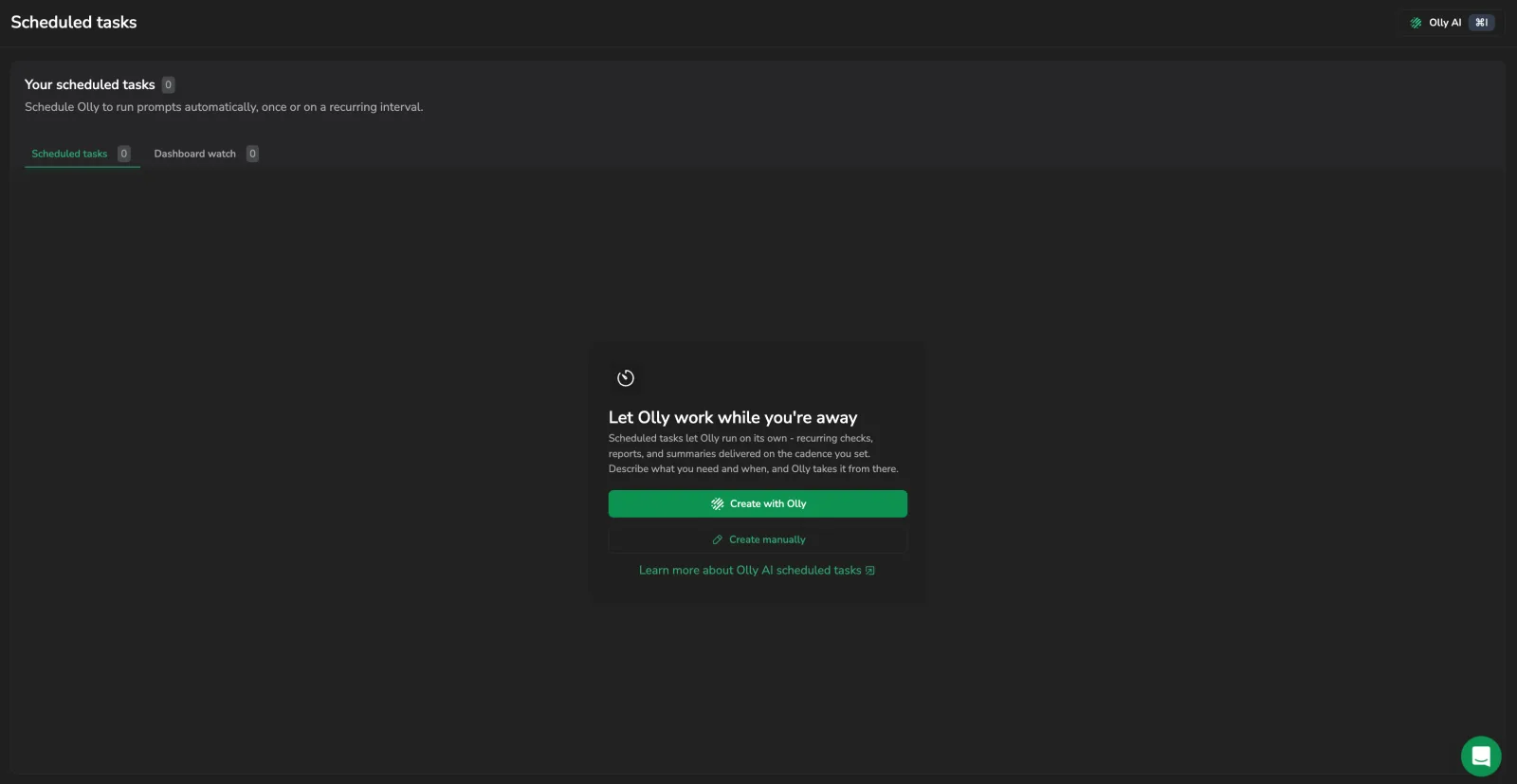
Before you create your first task, the page shows an empty state offering the same two paths as the New scheduled task menu: Create with Olly and Create manually.
Create a scheduled task
Fill in the task form yourself, or describe the task to Olly and let Olly draft it with you. Both paths produce the same task.
Create a task manually
- On the Scheduled tasks page, select New scheduled task, then Create manually.
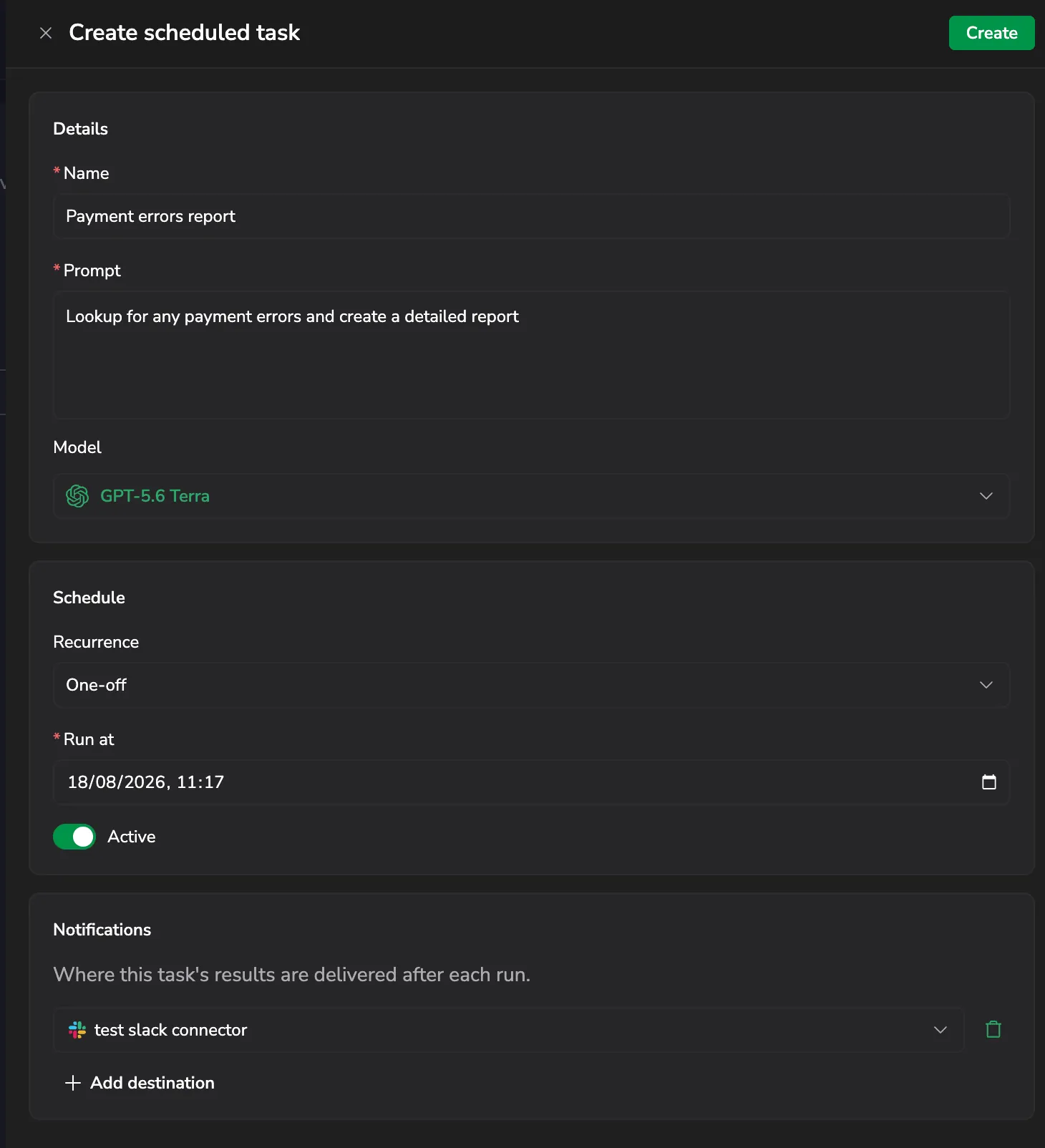
- In the Details section, fill in:
- Name: short identifier shown on the card and in run history (for example,
Daily error summary). - Prompt: the instruction Olly runs on each execution. Write it the same way you phrase it in chat, for example, Summarize the top error categories in the payment service over the last 24 hours and graph them.
- Model: the Olly model used for each run. The list matches the models available in Olly chat. See Model selection.
- Name: short identifier shown on the card and in run history (for example,
- In the Schedule section, set:
- Recurrence: pick a cadence: One-off (runs once), Hourly, Daily, Weekly, or Monthly.
- Run at (One-off) or Start time (recurring): when the run fires. The time must be in the future and no later than 1 week from now.
- Active: leave on to start the task immediately, or turn off to save it paused.
- (Optional) In the Notifications section, add one or more destinations for each run's results. See Get notified when a task runs. You can also add these later by editing the task.
- Select Create.
The new task appears on the Scheduled tasks page. If it's active and the start time has passed, Olly runs it at the next scheduled time.
Create a task with Olly
Select New scheduled task, then Create with Olly. Olly opens a new chat with the /scheduled-tasks skill and an opening request already filled into the prompt box, ready for you to send.
Olly asks for whatever it still needs, such as what to run, how often, when to start, and where to send the results, and saves the task only after you confirm it. The task then appears on the Scheduled tasks page without a reload.
Manage a scheduled task
Open a task to see its details, run it on demand, or change it. From the Scheduled tasks page, select a card to open the task detail page. From the more actions menu on a card you can also select Open, Edit with Olly, Edit manually, Run now, or Delete without opening the detail page.
Pause or activate a task
The badge next to the task name shows the current state. Active (green) or Paused (grey). To switch states:
- On the Scheduled tasks page, use the Active toggle on the card.
- On the detail page, select Edit and switch the Active toggle.
A paused task stays in the list but doesn't run on its schedule. Activating it again resumes runs at the next scheduled time.
Run a task now
Select Run now on the detail page, or pick Run now from the card's more actions menu. The run starts immediately and appears in the task's run history. Running on demand doesn't change the task's next scheduled run.
Edit a task
Select Edit manually to open the task in the same dialog used to create it. You can change the name, prompt, model, recurrence, interval, start time, and active state. Changes apply to subsequent runs. Chats from past runs stay unchanged. On the detail page, the same dialog opens from Edit.
To change the task in chat instead, select Edit with Olly. Olly opens with the task already named in the prompt box. Describe the change in plain language, such as moving the run to 07:00 or switching it to weekly, and Olly applies it after you confirm. If you already have an Olly chat open that you can write in, the request continues there. Otherwise Olly starts a new chat.
Delete a task
Select Delete from the detail page or the card's more actions menu, then confirm in the dialog. Olly stops the task and removes it from your list. Chats from past runs of the task stay in your chat history, only the task itself goes away. Deletion can't be undone.
Get notified when a task runs
By default a scheduled task runs quietly, each run's output lands in its own chat and in the task's run history, and you review it there. Add one or more destinations to a task and Olly delivers each run's results there as soon as the run finishes, so you don't have to keep the Scheduled tasks page open.
Destinations are Notification Center connectors. A task can send to up to 5 connectors, of three types:
- Email: sends an email to an address you choose, with a preview of the run's output and a link to the full chat.
- Slack: posts to a Slack channel.
- Microsoft Teams: posts a card to a Teams channel showing the run's status and start time, a preview of the output, and an Open chat button. See Microsoft Teams for how to connect a Teams tenant.
Add email and Slack destinations from the task form or from chat. Add Microsoft Teams destinations from the task form.
Add a destination in the task form
The Create scheduled task and Edit dialogs include a Notifications section. Where this task's results are delivered after each run. Until you add one it shows No destinations yet, and each run's results are stored on the task without notifying anyone.
- In the Notifications section, select Add destination.
- In the connector picker, search for and select an Email, Slack, or Microsoft Teams connector. The type icons at the top of the list filter it by type.
- Repeat to add more, up to 5 destinations per task. Remove one with the delete icon beside it.
If you don't have a suitable connector yet, select + Connector at the bottom of the picker to open Notification Center connectors in a new tab, create one, then select Refresh list to pick it. Only Email, Slack, and Microsoft Teams connectors appear here.
Set up notifications from chat
You can also let Olly handle email and Slack delivery when you create or edit a task in chat, for example, email me the results or post this to #payments-alerts. Olly reuses a connector that already targets that recipient, or creates one for the address or channel you name. You can add or remove recipients later, or turn notifications off entirely. See Manage scheduled tasks from chat.
To post to Slack, connect a Slack workspace to Coralogix first. If none is connected, Olly points you to the Integrations page to set one up.
In chat, Olly works with email and Slack connectors only. To deliver a task's results to Microsoft Teams, add the Teams connector as a destination in the task form. See Add a destination in the task form.
For more on connectors and destination types, see Connectors, Slack, and Microsoft Teams.
Manage scheduled tasks from chat
You can create and manage scheduled tasks directly in the Olly chat, without opening the Scheduled tasks page. Describe what you want in plain language (for example, check the payment service for ERROR logs every hour) and Olly sets up the task. To invoke the scheduling skill explicitly, type /scheduled-tasks in the prompt; it also appears under Built-in in the / skill picker.
Create with Olly and Edit with Olly on the Scheduled tasks page open this same skill with the request already drafted for you. See Create a task with Olly and Edit a task.
From chat, Olly can:
- Create a one-off or recurring task from your request. Olly turns your request into a self-contained prompt for each run, asks where to send the results, then confirms the task with a link to its detail page.
- List your existing tasks.
- Edit a task: rename it, rewrite its prompt, change the time or cadence, or convert between one-off and recurring.
- Manage notifications: ask to be notified by email or in a Slack channel when a run finishes, add or remove recipients, or turn notifications off. See Get notified when a task runs.
- Pause or resume a task.
- Run a task now, outside its schedule. Olly returns a link to the new chat the run produces.
Olly can't delete a scheduled task from chat. To remove one, use the Scheduled tasks page. See Delete a task. The same limits apply whether you manage tasks from chat or from the Scheduled tasks page.
See run history
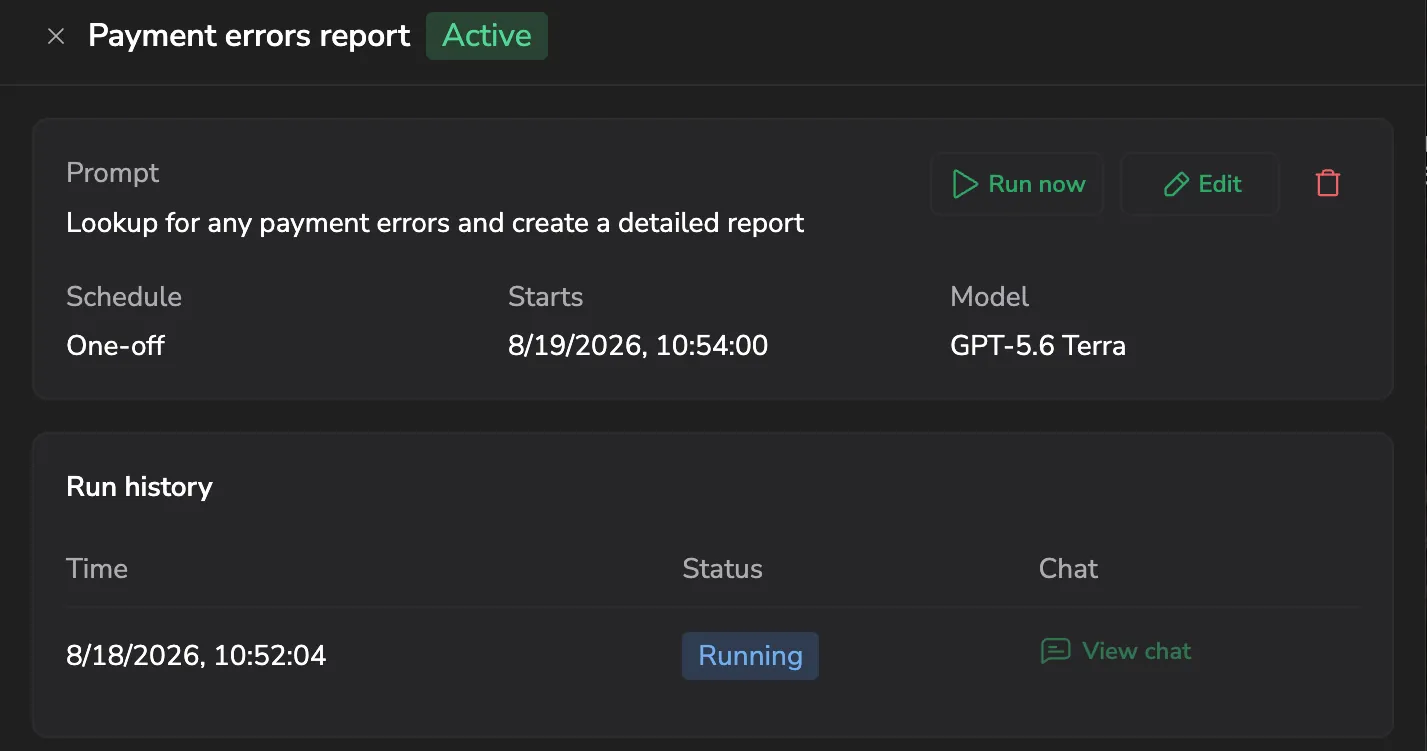
The detail page's Run history section lists every run of the task, most recent first. Each entry shows:
- A status badge. Pending, Running, Succeeded, or Failed.
- The time the run started.
- A View chat link to open the chat Olly produced for that run.
If a run is in progress, the entry stays in Pending or Running until it completes. A Failed entry means the run didn't complete. Hover the badge to see why. Common reasons are that the team's AI units quota was exceeded, that AI-Powered Capabilities was turned off for the account before the run fired, or that the run timed out. Some failures happen before the agent produces a chat, so a Failed entry might have no View chat link.
Limits
- Scheduled tasks per user: up to 20. If you reach the limit, delete a task you no longer need before creating a new one.
- Notification connectors per task: up to 5 (email, Slack, or Microsoft Teams).
- Start time: must be in the future and no later than 1 week from when you save the task.
- Visibility: a scheduled task is private to the user who created it. Team API keys aren't supported.
Next steps
Browse the tabular outputs Olly returns from your scheduled runs in Dynamic tables.