Export log data
Export data downloads the results of an Explore V2 query as a CSV or TSV file. Use it to share investigation results outside Coralogix, run analysis in spreadsheets or notebooks, archive a snapshot for compliance, or hand off log samples to teammates without a Coralogix login.
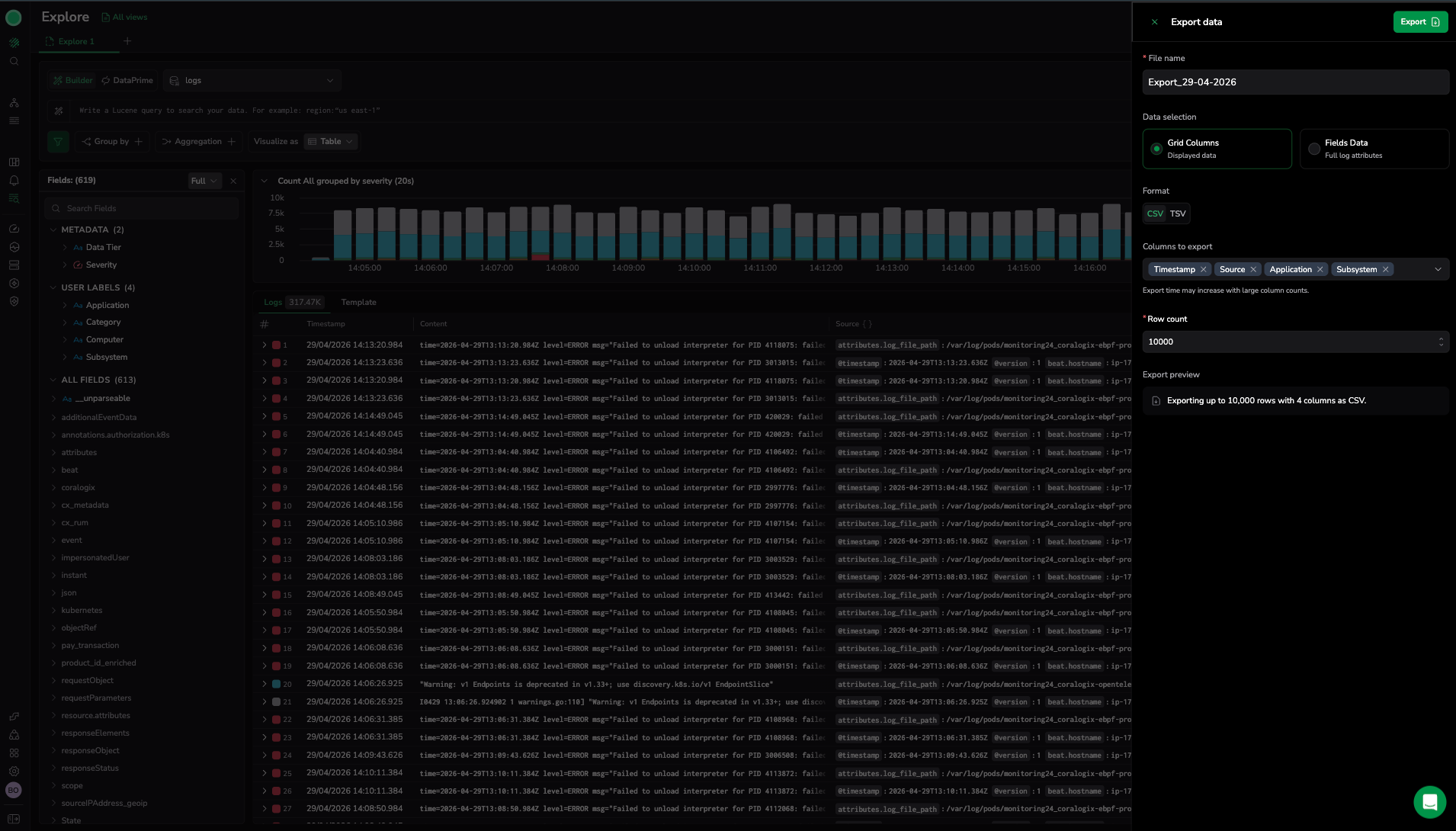
Choose a data-selection mode
Choose based on how you plan to use the file:
- Pick Grid columns when you want a clean CSV or TSV that opens cleanly in Excel or Google Sheets. Each visible column becomes a column in the file.
- Pick All logs when you need every field per log for analysis or archival. The file is denser and not optimized for spreadsheets.
If in doubt, Grid columns is the safer default.
How to export
- Run a query in Explore V2 so the grid contains the logs you want.
- Open Export data from the actions in the top-right corner.
- Choose a data-selection mode (Grid columns or All logs).
- Choose CSV or TSV.
- Adjust the log count if needed. Default and cap are both 10,000.
- Select Export. The file downloads to your browser.
How exported data maps to the grid
Most columns in the grid map directly to a single backend field, and they appear in the export with the same name and value. A few columns are different.
Virtual columns
A small number of columns are built in the UI from several raw fields, with fallbacks and normalization across SDKs and sources. They are not stored as a single field on the backend, so they are not included in the export.
| Surface | Virtual column | Source fields |
|---|---|---|
| Logs | content | message, log, body, event, and similar fields |
| Spans | resource | Resource attributes (varies by SDK and instrumentation) |
| Spans | status_code | http.status_code, rpc.grpc.status_code, and semantic-convention equivalents |
If you add a virtual column under Columns to export, the file will not contain a column with that name. To capture the same information:
- Pick All logs to export every raw field, then derive the equivalent column yourself in your spreadsheet or notebook.
- Or select the underlying source fields directly in Columns to export before exporting.
Limitations
| Area | Limit |
|---|---|
| Maximum logs per export | 10,000 |
| Supported formats | CSV and TSV only. JSON, JSONL, and Parquet are not supported. |
| Delivery | Direct browser download only. No email, S3, or background delivery. |
| Execution | Synchronous only. Closing the dialog or navigating away cancels the export. |
| API and Terraform | Not available. Export is UI-only. |
| Scheduling | Not available. Each export must be triggered manually. |
| Truncation | If the query returns more than 10,000 logs, only the first 10,000 are included. There is no warning beyond the row-count cap shown in the dialog. |
| Datasets | Logs only. Spans and metrics are not supported. |
Troubleshoot
| Problem | Cause | Resolution |
|---|---|---|
| File contains fewer logs than expected | The query returned more than 10,000 logs and the export was capped. | Refine the query or shorten the time range to fit within 10,000 logs, or run multiple exports across smaller windows. |
| Column shown in the grid is missing from the file | The column is a virtual column built by the UI (for example, content for logs or resource and status_code for spans). It does not exist as a single backend field. | Pick All logs to export every raw field, or select the underlying source fields explicitly in Columns to export. |
| Spreadsheet shows JSON in cells | All logs was selected. | Re-export with Grid columns for a flat file. |
| Special characters break the spreadsheet layout | The data contains commas that conflict with the CSV separator. | Re-export with TSV. |
| Export is empty | The query returned no results. | Adjust the query, filters, or time range so the grid shows results before exporting. |
| Browser download is interrupted | The dialog was closed or the page navigated away during export. | Stay on the dialog until the file finishes downloading. |
Learn more
Support
Reach the Coralogix customer success team 24/7 via in-app chat or by email at support@coralogix.com.
Next steps
Build sharable deep links to Explore V2 with the Copy URL action in Explore actions.