Filter with fields
Use the Fields panel to discover which fields exist in your current Explore results and to take common actions without manually typing field names into the query.
The Fields panel replaces the old "filters" concept, which was a closed list of predefined fields. Fields is an open list: it surfaces all detected fields from the current results, and lets you favorite the ones you care about most.
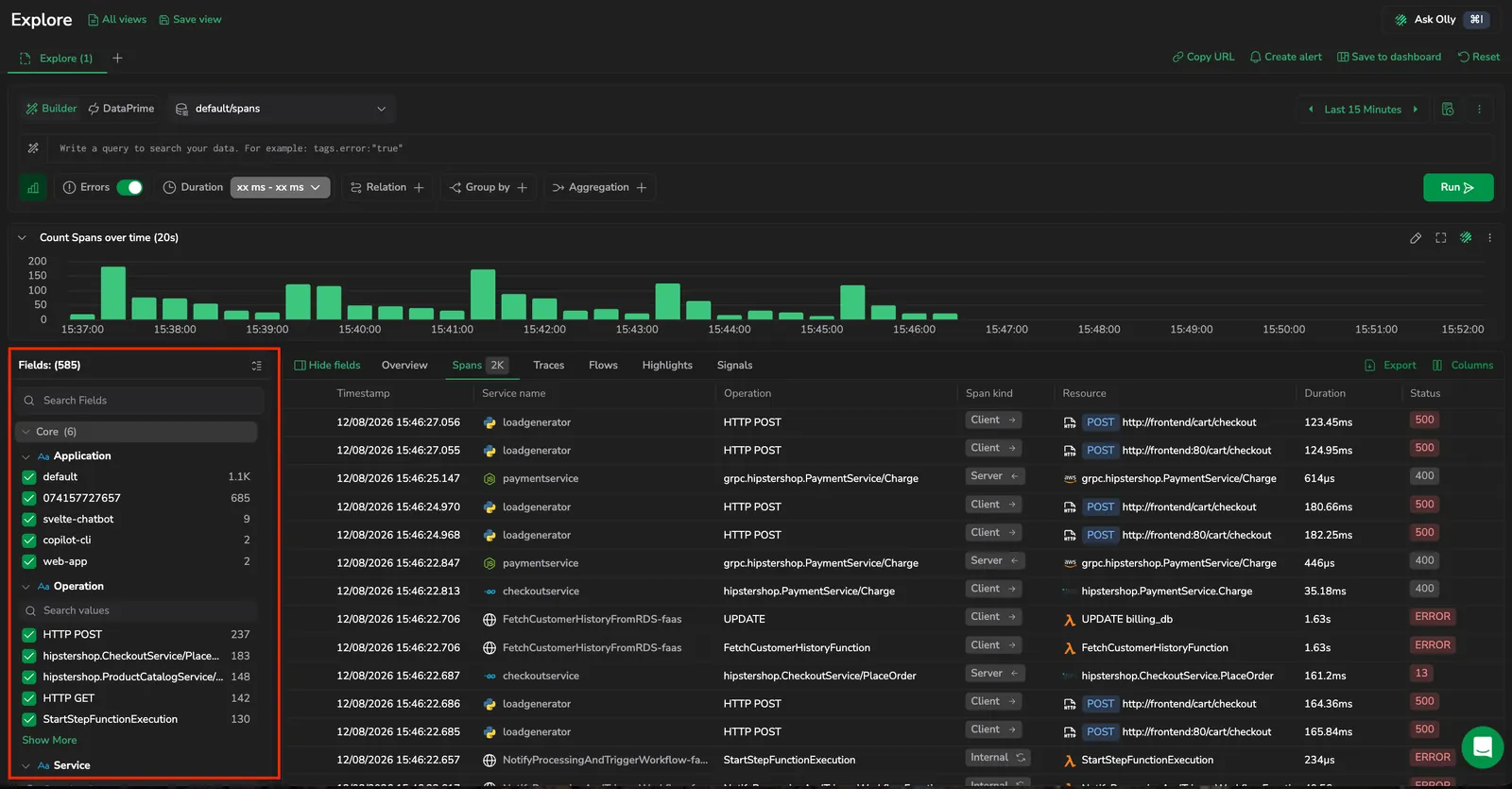
Open the Fields panel
Select the filter icon next to the query builder to open or close the Fields panel. To close it, select the X in the panel header, or use the Hide fields / Show fields toggle at the left of the result-panel toolbar, next to the result tabs. Use the Expand all / Collapse all toggle in the header to open or close every section and category at once.
Showing or hiding the panel sets a preference that Explore remembers. The choice applies to every open tab at once, carries to tabs you open later, and survives a reload, so the panel comes back the way you left it rather than reopening on each tab's first query. Views that need the full width, such as Flows, the columns wizard, and the saved views panel, still close the panel while they are open and return it to your stored choice afterwards.
A strip of active-filter chips at the top of the panel aggregates the filters currently applied per field. Select Show in list on any chip to scroll to the matching field.
What a field is
A field is a key found in your logs or spans. Each event can include many fields, and the Fields panel lists those detected in the results you are currently viewing.
How the fields panel updates
The Fields panel reflects the current Explore context:
- Your query
- Your time range (for example, the last 15 minutes)
- The results returned for that context
As you change the query or time range, the panel updates to match the current results. It surfaces all detected fields from the current results, and lets you favorite the ones you care about most.
It does not represent every field across all historical logs.
How filtering works
Filtering is synchronized between the Fields panel and the query bar:
- When you add a field or value from the Fields panel, it is added to the query bar.
- When you edit the query bar, the Fields panel updates to reflect those selections.
This prevents mismatches where one UI control applies a constraint that the other does not show.
Field search flow
Goal: Allow the user to discover fields and add field-value filters to the query.
Use the following flow to find a field, select a value, and filter the results:
- Open the Fields panel.
- Search for a specific field by name.
- Add the field to the selected area.
- Select the field to expand it.
- Select one of the field values.
- Confirm that the value is added to the query.
- Run the query.
As you add or remove filters, the Fields panel and the query bar stay in sync, so you can validate what is applied from either place.
Panel sections
The Fields panel is the same shared component on every dataset. It uses a tree structure: expand any section to browse its fields, and expand a field to see its value distribution and statistics. Favorites is pinned at the top, a Core section holds the identifiers you filter on most, and the remaining fields are grouped into domain sections so the panel stays navigable when a source carries hundreds of attributes. Sections with no matching fields in the current results are hidden, and your last expand/collapse state is remembered per source and dataset.
Use the search box at the top of the panel to find a field by name. Search matches against the field key; matches appear under their section, and any collapsed section that contains a match expands so the result is visible.
The Core identifiers and the domain sections depend on the dataset, as described below. Everything else (favorites, field actions, filtering by value, value counts, and DataPrime support) works the same on every dataset.
Favorites
A personal list of fields you want to keep at the top of the panel, scoped per dataset.
- Select the star icon on a field to add it to favorites; select it again to remove it. Favorites pin to the top of the panel for quick access.
- Explore stores favorites per
(source, dataspace, dataset). Starring a field underlogsdoesn't pin it underspansor a user-defined dataset. - Favorites support "my fields" workflows, where different users care about different keys.
- A favorite that no longer appears in the current schema still renders in the Favorites list with its last-known metadata. Remove the pin to clear it from the list.
Sections on the logs dataset
On the logs dataset, Core holds the Coralogix platform identifiers you filter on most, in a fixed order:
| Field | Description |
|---|---|
| Application | Filters by the Coralogix application label. |
| Subsystem | Filters by the Coralogix subsystem label. |
| Severity | Restricts to one of Debug, Verbose, Info, Warning, Error, or Critical. |
Below Core, every other field is grouped into domain sections. A field lands in the first section whose patterns it matches, and anything unmatched falls to Other:
| Section | What it covers |
|---|---|
| RUM | Real User Monitoring telemetry from the browser and mobile SDKs (the whole cx_rum namespace, including its own network, GeoIP, and user attributes). |
| Cloud | Cloud provider attributes: account, region, and resource IDs across AWS, Azure, and GCP. |
| Container | Container runtime attributes. |
| Process | Process attributes. |
| Network | Network and peer attributes, including client and server roles. |
| Database | Database client attributes. |
| Error / Exception | Error and exception attributes. |
| Events | Event attributes. |
| Message / Log | The log message and log-record attributes. |
| Kubernetes | Pod, namespace, node, cluster, and workload attributes. |
| Host & Infrastructure | Host, OS, and resource attributes from resource detectors. |
| HTTP / Web Access | Server-side request, response, and access-log attributes. |
| GeoIP | Country, region, city, and coordinates derived from the client IP. |
| User | User identity and account attributes. |
| Trace / APM | Trace, span, and scope context linking a log to its APM signal. |
| Other | Any field that doesn't match a section above. |
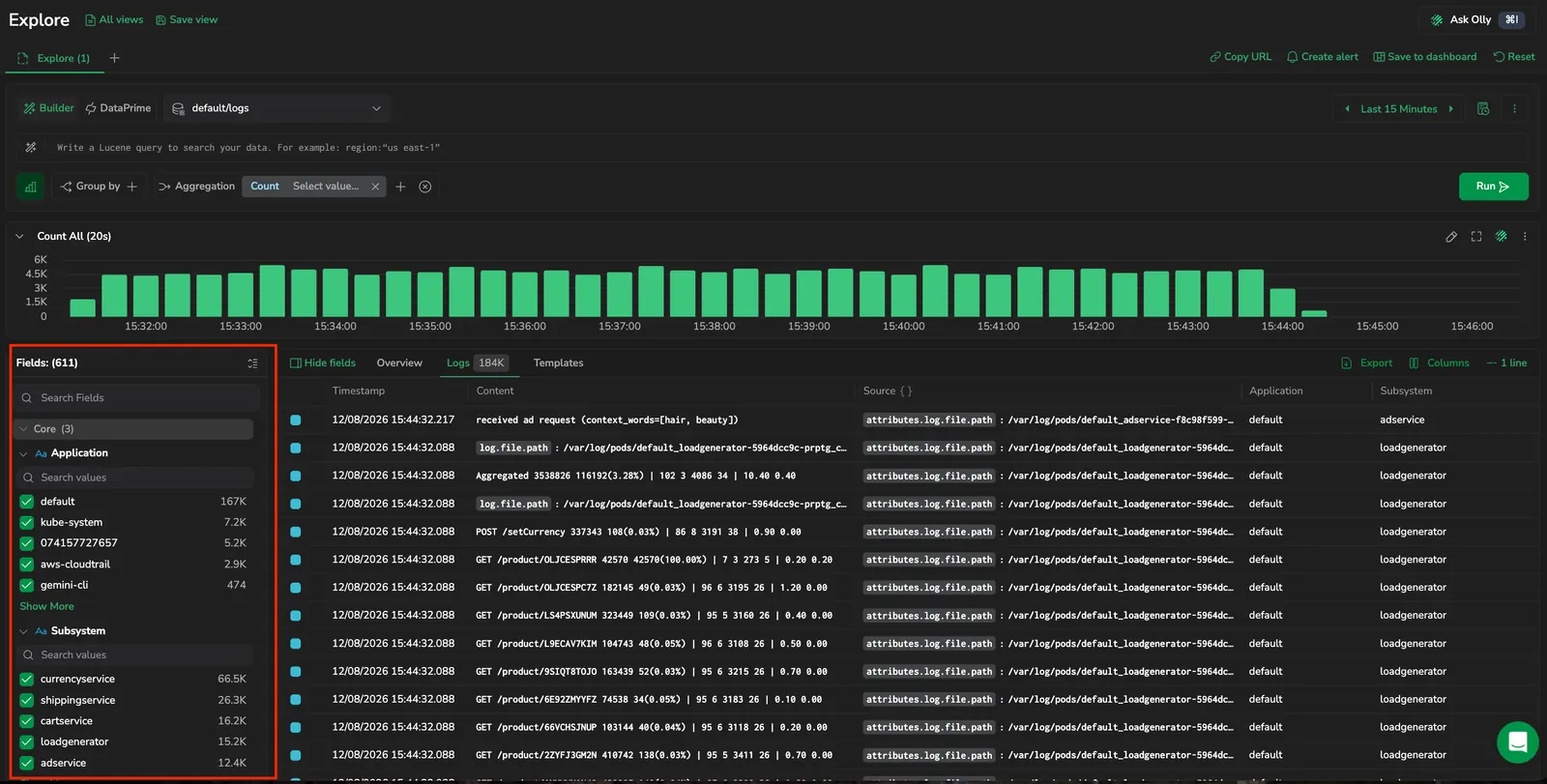
Coralogix platform labels appear in Core (Application, Subsystem, Severity). Other internal metadata ($m) and user-label ($l) fields appear in the panel alongside your data. Metadata fields aren't broken out as key/value rows in the Log details panel. They appear only nested in its JSON and Raw views. To put one in the table, add it as a column or search for coralogix. in the Logs tab's Columns panel. To query them in DataPrime, use the $m.<field> / $l.<field> access mechanisms; see Access mechanisms.
Sections on the spans dataset
On the spans dataset, the panel adds a Spans/Traces distinction and a span-specific Core, and it groups the remaining fields by OpenTelemetry semantic convention.
The Spans and Traces tabs filter at different levels:
- Spans tab: filters apply to span fields. Each value count reflects the number of matching spans.
- Traces tab: filters apply to trace-aggregated attributes (for example, total duration or error count). Each value count reflects the number of matching traces.
Switching tabs preserves the active filters and re-evaluates them against the new aggregation level.
Core sits at the top with the most common span identifiers, always visible regardless of the data in the current results:
| Filter | Description |
|---|---|
| Application | Filters by the Coralogix application label. |
| Subsystem | Filters by the Coralogix subsystem label. |
| Service | Filters by the service that produced the span. |
| Operation | Filters by the span operation. |
| Kind | Restricts to the span's OpenTelemetry kind: one of client, server, internal, consumer, or producer. |
Below Core, every other span field and tag is grouped by OpenTelemetry semantic convention. Coralogix strips tags. and process.tags. prefixes from incoming keys before classifying them, so a field named tags.http.status_code is grouped under HTTP, not Other. A field lands in the first section whose prefixes it matches:
| Section | Field prefixes |
|---|---|
| Exceptions | exception.* |
| HTTP | http.* |
| gRPC / RPC | grpc.*, rpc.* |
| GraphQL | graphql.* |
| Messaging | messaging.* |
| Database | db.* |
| Cache | cache.* |
| GenAI / LLM | gen_ai.*, gen.* |
| RUM / Frontend | cx_rum.* |
| Object Storage | objectstore.*, object_storage.* |
| Serverless | faas.*, cloud.* |
| Spark / Airflow / DBT | spark.*, airflow.*, dbt.* |
| Infrastructure | k8s.*, ecs.*, aws.*, host.*, deployment.*, container.* |
| Network | network.*, net.*, server.* |
| Runtime | process.*, service.*, telemetry.*, thread.*, os.* |
| Checkly | checkly.* |
| OTel | otel.* |
| Events | event.* |
| CloudEvents | cloudevents.* |
| Other | Any field that doesn't match the prefixes above. |
Field actions
Open the more actions menu on any field for these actions:
| Action | What it does |
|---|---|
| Exists | Adds a field-existence filter on the current query (Lucene _exists_:<path>). |
| Not Exists | Adds a field-absence filter on the current query (Lucene NOT _exists_:<path>). |
| Add as a column / Remove from columns | Adds or removes the field as a column in the results table. |
| Copy path | Copies the field's full path (for example, coralogix.metadata.severity) to the clipboard. |
| Group by | Adds the field to the Grouped by clause in the query builder. See Group by for the resulting view. |
Each field also has a Show distribution icon and a favorite (star) icon on its row, separate from the more actions menu.

The menu's Exists / Not Exists are field-existence filters. They include or exclude rows based on whether the field is present at all. To filter on a specific value, expand the field and use its value rows, described in Filter by value.
Expand a field in the Fields panel to see its value distribution inline. The count of logs per value within the current result set. A small data-type icon next to each field name shows whether the field is string, numeric, boolean, or another type. Fields defined as reserved fields also carry a reserved label in the query builder's field suggestions. For how those counts behave as you filter, see How value counts work.
Long value lists paginate with Show more / Show less controls, and each expanded field has a Search values box above its value list to filter a long value set (such as operation names or URLs) by substring. The severity field is a special case: it renders color-coded swatches per severity value with no Show more control.
Filter by value
Expand a field and use the checkbox on each value row to include or exclude it. The Fields panel and the query bar stay in sync as you go:
- With no filter on the field, every value is checked. Clear a checkbox to exclude that value, and the query gains a matching exclusion clause.
- Select Only on a value to narrow the field to that value alone. This clears any other included or excluded values for the field and keeps just the one you selected.
- Once the field has an included value, selecting a checkbox adds that value to the set and clearing it removes the value. Clearing the last included value returns the field to its unfiltered state, with every value checked again.
The checkbox state is the filter state: a checked value is included, a cleared value is excluded. When a field is part of an OR group in the current query, its value checkboxes are disabled. Edit the query directly to change how that field is filtered.
.keyword meansSome string filters use a .keyword suffix (for example, serviceName.keyword:"checkly"). The base field is analyzed (broken into lowercase tokens, so it matches individual words) while the .keyword variant keeps the whole value as a single exact string and matches it verbatim. When you filter on a string value in Builder mode, Explore applies the .keyword match automatically; numeric and boolean values match directly, without it. See Filter chips for more.
Show distribution
Select the Show distribution icon on a field to open a drilldown drawer that groups your current results by that field.
The drawer header reads Group by with the field name (for example, metadata.applicationName) and has two parts:
- Unique values: a chart of the field's distinct values, each with its count. A badge beside the heading shows the field's total number of distinct values. It opens as a horizontal bar chart; use the chart-type dropdown to switch between Vertical bar, Horizontal bar, Area chart, Line chart, and Pie chart. A Full view icon on the chart expands it to fill the screen; select it again (Exit view) to return to the drawer. When the field has more than 50 distinct values, the chart draws the 50 busiest and the heading reads Top 50 of N, where N is the total number of distinct values, so it's clear you're seeing a top slice rather than the full set.
- Results: the rows that make up the grouping.
Use this to:
- Quickly assess the distribution of a field without building a full query
- Identify which values dominate a field
- Pivot into a subset without leaving your current investigation
Select Apply to main to carry the grouping into the main Explore view. This is the same drilldown drawer you get when you select a row in grouped results.
Group by
Select Group by to add the field to the Grouped by clause in the query builder. The table transforms from individual log rows into aggregated groups, showing each unique value and its count.
This provides a shortcut to group results by a field directly from the Fields panel without opening the Grouped by dropdown. After grouping, select any group row to open a drilldown panel for focused investigation of that group.
Filter in DataPrime mode
The Fields panel works in DataPrime mode the same way it does in Builder mode: expand a field to see its values, filter by value with the checkboxes, and use the field actions (Exists, Not Exists, Add as a column, Group by). The panel reads and writes DataPrime filter clauses instead of Lucene ones, and the panel and query bar stay in sync as you go.
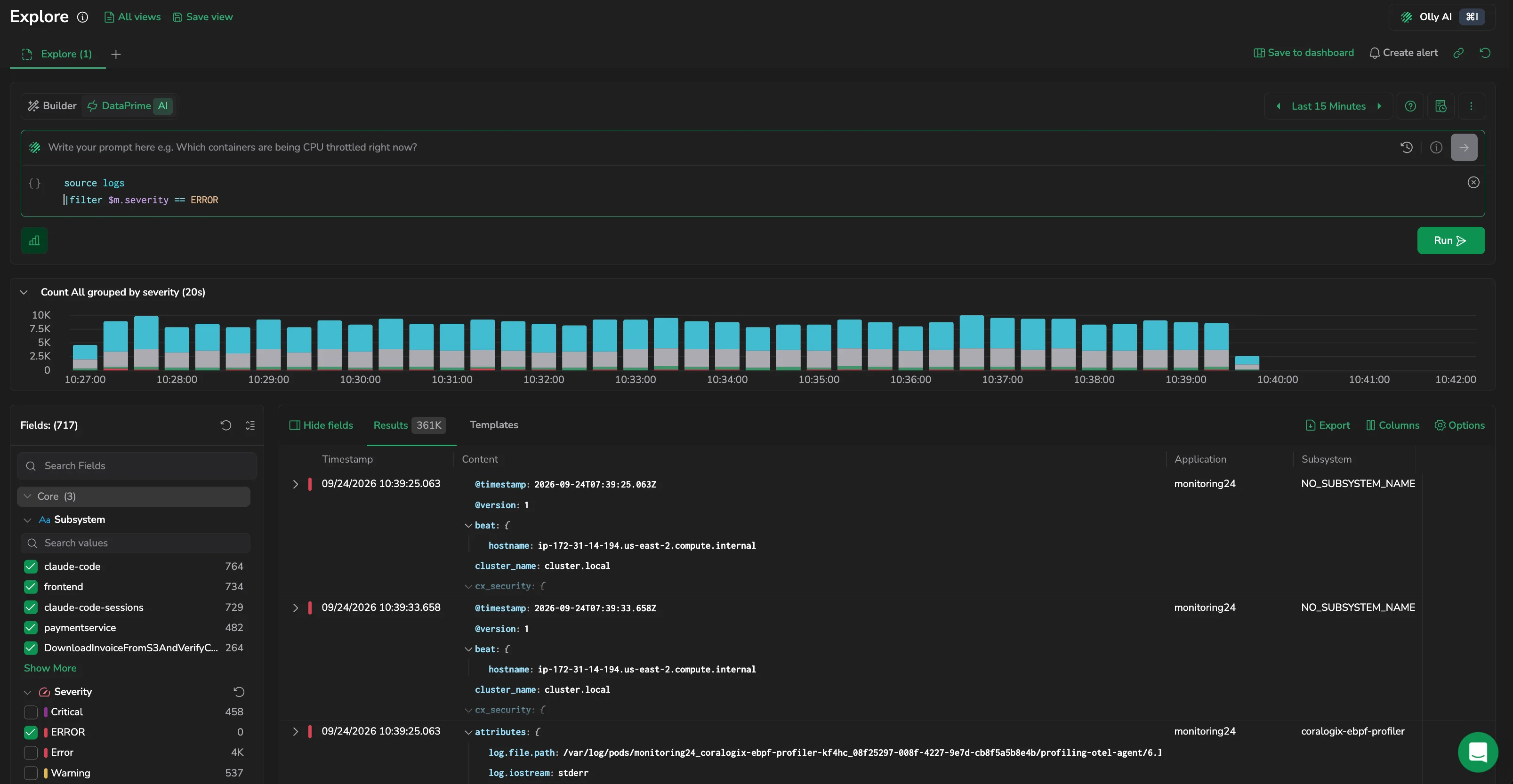
Because these actions come from the panel, they are added at the beginning of the query. For example, filtering the severity field to ERROR adds a leading filter clause:
source logs
| filter $m.severity == ERROR
When you include several values for one field, they are combined so the field matches any of them: adding a second value broadens the results instead of narrowing them to none. Clearing a value removes exactly its clause and leaves the rest of your query untouched. The checkboxes also reflect filter clauses you typed by hand, not only the ones you added from the panel.
The panel stays available when your query groups or aggregates a single source, so you can keep filtering by field while you look at aggregated results. Value counts work in DataPrime mode too.
A badge in the panel header names the dataset the listed fields were loaded from, so you can tell at a glance which source the panel is describing. The panel reloads its fields as soon as you change the source, without waiting for you to run the query, and the badge updates once the fields have loaded. A query with no source line lists fields from logs. If the source you typed doesn't resolve, for example because of a typo, the panel keeps the fields it already has rather than emptying.
Actions you take from the results table rather than the panel are added at the end of the query instead. See Field context menu.
When field filtering is unavailable
Filtering by value depends on Explore mapping your query to a single set of field filters. When it can't, the value checkboxes are disabled, along with the field's Show distribution button and its actions menu, so the panel never offers an action it can't apply. This happens when the current query:
- Can't be parsed
- Draws on more than one source
While you are still editing a query that isn't valid yet, filtering by value is briefly unavailable and returns as soon as the query parses.
A query that uses a union, join, or subquery, or that combines more than one field in a single condition such as an OR across different fields, no longer disables the panel. Those queries keep filtering available, and any individual field the query constrains in a way Explore can't map simply reads as unfiltered.
How value counts work
When you expand a field, each value shows a count (the number of matching logs in the current result set) and the list is sorted by count, highest first. The counts follow a few rules that keep them meaningful as you filter:
- Self-exclusion: a field's own filters don't affect its own value counts, so selecting one value doesn't shrink the others. Every other active filter still applies, so each count reflects the rest of your query.
- Zero-count values are hidden: a value that no longer matches any results drops out of the list, and reappears as soon as a filter change brings its count back above zero.
- Conflicting filters stay visible: a value you've explicitly filtered in or out stays in the list even when the rest of your query drops its count to
0. The conflict shows as a0you can see and clear, instead of a value that silently disappears. - Stable order: the value list keeps its count-sorted order while you work. The value you filter in or out keeps its position, and expanding or collapsing a field or loading more values never reorders it. It re-sorts only when the results change, a new query, a filter change, a new time range, or opening a saved view.
- No values found: when a field has no matching values, its list shows No values found and keeps its place in the panel.
When the query updates, each per-value count pulses in place while the new count loads, and rows stay put rather than reordering.
Partial counts on long time ranges
Counting every matching record over a long time range takes time, so on ranges of about a day or longer, including the Last 24 hours preset, the panel gives you something to read while the exact counts are still being calculated.
Expand a field on one of those ranges and each value first shows a partial count, written with a leading tilde, for example ~45K. The partial count is the number matched so far across the part of the time range already counted, so it climbs toward the final number instead of estimating it. The whole count pulses while it loads, and hovering a partial count explains that the rest of the time range is still being counted. When the exact counts finish they replace the partial ones in place, and the numbers you see from then on are the final counts.
A few things worth knowing:
- A partial count keeps climbing. It covers only the part of the range counted so far, so read it as a running total, not a final figure. Wait for the exact count before quoting a number.
- The order holds. Values stay in the same positions when the exact counts replace the partial ones, so a value you were about to filter on doesn't jump away from your pointer.
- Short ranges go straight to exact counts. Below about a day the full count is fast enough on its own, so no partial counts are shown.
- Nothing fails loudly. If the partial counts don't come back, the field simply keeps its placeholder until the exact counts land.
Field statistics
Each field shows the following statistics, calculated from the current result set:
- Field popularity: the percentage of logs in the current result set that contain this field. For example, if 20 out of 100 logs contain the
statusfield, its popularity is 20%. - Data type (shown as an icon next to the field name)
- Number of values
- Selected values indicator: shows the selected count alone when the field is collapsed and
selected/totalonce the field is expanded
Expand a field to see its value distribution: a breakdown of the count of logs per value within the current result set.
Example for the application field:
app1: 45 logsapp2: 30 logsapp3: 25 logs
Both field popularity and value distribution update dynamically when you change the query or time range.
Order within the panel
The Fields panel doesn't have a sort menu. Fields are grouped into the sections described in Panel sections (Favorites and Core at the top, then the per-dataset domain sections), and within a section fields are organized by field path. Each field keeps its position regardless of how many values it currently has, so a field with no matching values isn't pushed to the bottom.
For how values are ordered within an expanded field, see How value counts work.
Troubleshooting
If adding a filter returns no results:
- The filter combination might be too narrow for the current time range.
- Remove one filter and reapply filters one at a time.
If a field does not appear in the Fields panel:
- The field might not be present in the current results for the selected time range.
- Widen the time range or adjust the query to bring relevant logs into the results.
If the Fields panel does not reflect the query you expected:
- Verify that the value you selected appears in the query bar.
- Clear and reapply the filter from either the query bar or the Fields panel.
Next steps
Write more advanced queries with Coralogix's pipeline syntax in DataPrime query.