Select a dataset
Every query in Explore starts with a dataset selection. Selecting the right dataset before running a query improves both the speed and relevance of your results.
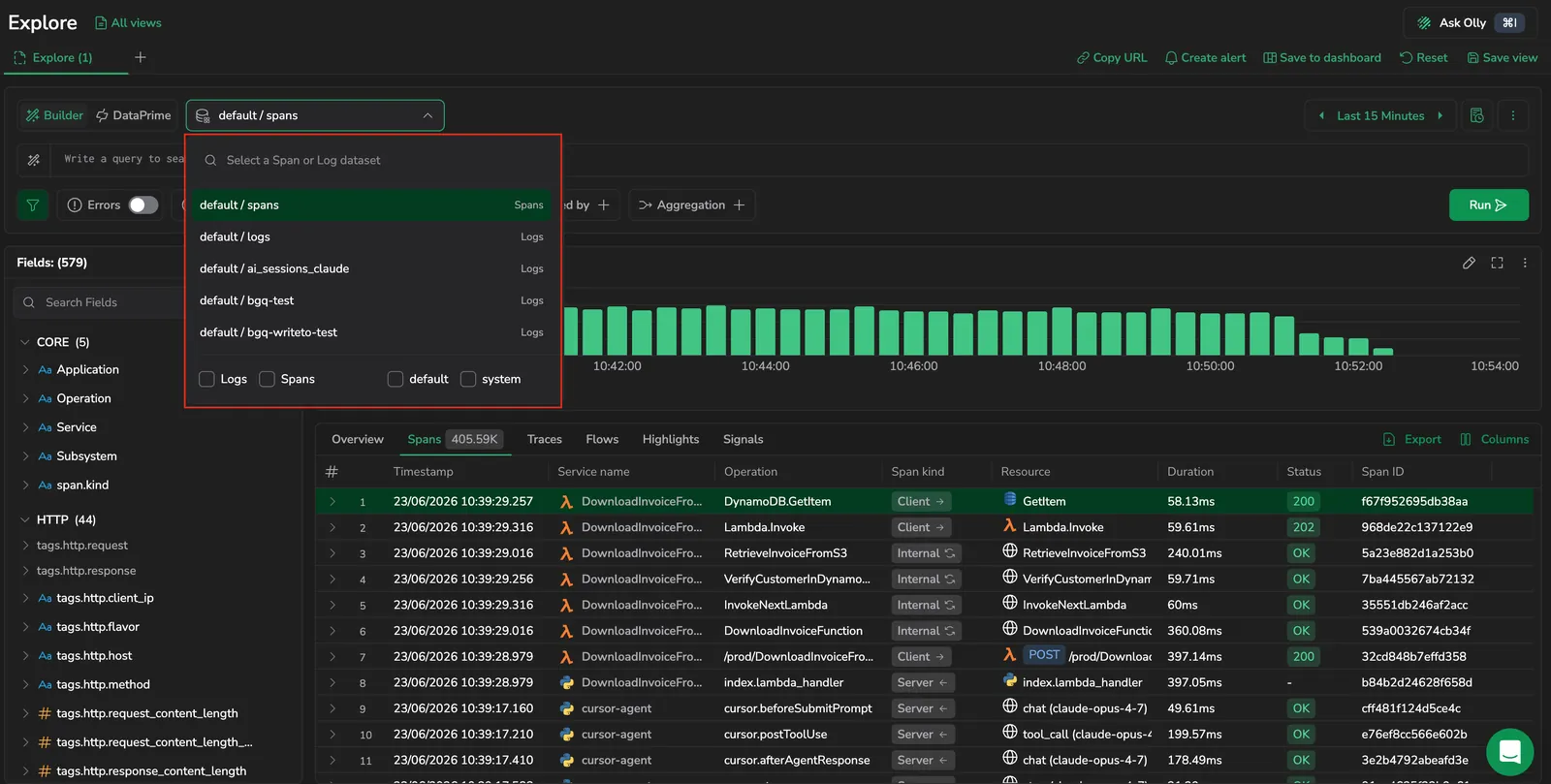 Dataset selector showing available datasets
Why your dataset selection matters
Use dataset selection for:
- Faster queries: Explore searches only within the selected dataset rather than across all your data, reducing query time and resource usage.
- Focused results: Results are scoped to the data type you are investigating, so logs queries return log events and spans queries return trace data, no noise from unrelated signal types.
- Access to internal data: System datasets expose Coralogix-managed metadata that is not part of your ingested data, such as alert history and audit events, without interfering with your application data.
How the selector works
The dataset selector sits inside the query builder and shows every dataset available to your team in a searchable dropdown. Each row is rendered as <dataspace>/<dataset> (for example, default/logs) with an entity-type pill on the right.
At the bottom of the dropdown, two sets of checkboxes narrow the list, one by entity type (logs, spans, jsonData) and one by dataspace (default, system, frequentsearch). Only the entity types and dataspaces your team has appear.
When you switch to a different dataset, Explore:
- Resets the query to the empty state for the new dataset.
- Resets the column layout to the new entity type's defaults.
- Preserves the current time range.
Query more than one dataset
The selector holds one dataset at a time. In Builder mode, the Lucene query you type runs against that dataset alone, and switching datasets resets the query.
To read several datasets in one pass, switch to the DataPrime tab and list them as comma-separated sources:
source logs, spans, system/engine.queries
| filter $m.severity == 'Error'
| countby $l.applicationname
The query scans each dataset once and concatenates the records, so a comparison or a roll-up across datasets is a single query rather than a chain of separate ones. Every dataset in the list has to be in the same region, and one query can reference up to 128 sources. See source for the full syntax, including the teamId and version parameters.
Dataspaces and datasets
Data in Coralogix is organized into dataspaces and datasets.
- A dataspace is a logical container that groups related datasets and applies shared configuration.
- A dataset is the actual data store within a dataspace. The records you query.
For example, logs is a dataset inside the default dataspace. In DataPrime you reference it as source default/logs (or simply source logs). In Builder mode, you just pick it from the dataset selector, no source clause appears in the Lucene query you type.
| Dataset | Dataspace | Entity type |
|---|---|---|
logs | default | Logs |
spans | default | Spans |
logs, spans | frequentsearch | Logs, Spans |
rum.events | rum | Logs |
| User-defined datasets | default | Logs |
| System datasets | system | Various |
Predefined and custom datasets
The datasets available in the selector fall into two groups, depending on who creates them:
- Predefined datasets: Datasets that Coralogix provides and manages. You don't create these. They exist based on the data you send and the features you enable. Predefined datasets include
logsandspansin thedefaultdataspace, their Frequent Search counterparts (frequentsearch/logsandfrequentsearch/spans), the system datasets that hold internal data such as alert history and audit events, andrum.eventsfor Real User Monitoring data. - Custom datasets: User-defined datasets that you create under the
default/dataspace to isolate specific streams. You control the name, the routing policy that fills the dataset, and its access policy.
default is the name of a dataspace, not a synonym for "predefined." The default dataspace holds both the predefined logs and spans datasets and any custom datasets you create, so a dataset under default/ can be either kind.
/logs
The logs dataset is the default selection in the default dataspace. It contains your ingested log data and is the starting point for most log investigations.
When you select logs, you can query with Lucene or DataPrime, apply filters, group results, and visualize log distributions.
/spans
The spans dataset contains your distributed tracing data. Selecting spans lets you search traces, inspect spans, and drill into service dependencies.
rum.events
The rum.events dataset holds the Real User Monitoring events your browser SDK sends, such as page loads, user interactions, network requests, web vitals, and errors. Select it from the dataset selector to query RUM events with Lucene or DataPrime alongside your logs and spans.
Because RUM events are shaped differently from logs, Explore gives rum.events its own default grid columns: the timestamp, a User name column that resolves the first identity field the event carries (session_context.user_email, then session_context.user_id, then session_context.user_name), the event type (event_context.type), a Content column whose field depends on the event type, and the application.
The Content column shows a different field for each kind of RUM event:
| Event | Content field |
|---|---|
| Error | error_context.error_message |
| User interaction | interaction_context.resolved_name |
| Network request | network_request_context.fragments |
| Web vital | web_vitals_context.name |
| Resource | resource_context.name |
| Long task | longtask_context.duration |
| Log | log_context.message |
| Custom measurement | custom_measurement_context.name |
Events without a type-specific field fall back to event_context.source. You can customize the columns and Content keys like any other dataset. See Logs table.
View a RUM event in RUM Sessions
To jump from an event in Explore to the session it belongs to, select a field value in the rum.events grid to open the field context menu, then select View in RUM Sessions. Explore opens RUM Sessions in a new browser tab, filtered by the key:"value" you selected and scoped to the same time range.
Frequent Search dataspace
frequentsearch is a dataspace, like default and system, not a dataset. It contains the logs and spans datasets that hold the data you assign to the High (Frequent Search) TCO Optimizer priority, indexed in hot storage (OpenSearch) for fast, interactive queries. You reference them as frequentsearch/logs and frequentsearch/spans. This is the fastest path for high-velocity, recent data. Select one from the dataset selector when you want quicker iteration over the most recent slice of your logs or spans. Query syntax, fields, and visualizations behave the same as default/logs and default/spans, with two differences:
- Span Relation filters are not supported on
frequentsearchdatasets. Explore clears them when you switch to or restore afrequentsearchdataset. - 10-second auto-refresh is exclusive to Frequent Search. The auto-refresh control in the time-range picker unlocks a 10-second interval only when a
frequentsearchdataset is active.
Which dataset Explore opens on
When you open Explore without naming a dataset, for example from the Logs link in the side navigation or from global search, Coralogix picks the dataspace for you based on one thing: whether your account has an archive configured.
- Archive configured: Explore opens on
default/logs, so your first query covers everything you have retained. - No archive configured: Explore opens on
frequentsearch/logs.
A dataset parameter in the URL always wins over this choice. See Deep links and URL parameters.
User-defined datasets
User-defined datasets are custom datasets you create under the default/ dataspace to isolate specific log streams. After creating a dataset in Dataset Management and routing logs to it via a TCO policy, the dataset is available in the Explore dataset selector.
Select a user-defined dataset from the dataset selector. In DataPrime, Explore references it as source default/<dataset-name>. You can then search, filter, and aggregate the data with Lucene or DataPrime.
See User-defined datasets for setup instructions.
What Explore shows for a custom dataset
A custom dataset appears in the selector alongside the predefined ones, labeled by its fully-qualified name and entity-type pill (for example, logs or jsonData). Query it directly with Lucene or DataPrime and add Group by and Aggregation clauses as needed. Custom datasets don't come with pre-built queries. You build the query yourself.
The result panel shows the Overview and Results tabs, plus the Templates view for logs datasets.
What else appears depends on the dataset's entity type:
- Timestamped datasets (for example, the
logsentity type): the dataset behaves likedefault/logs. The time-range picker is active, a time-series chart appears above the results, the Fields panel groups fields into categories such as Core and Kubernetes, and results show Timestamp, Content, Source, Application, and Subsystem columns. - Non-timestamped (not partitioned) datasets (for example, the
jsonDataentity type): the time-range picker is disabled, no chart appears, all fields fall under a single Other group, and each record renders in one Source column as JSON. See Non-timestamped datasets for the full behavior.
To inspect a single record, select its row to open the Log details panel, where you can read the record as Table, JSON, or Raw and jump to related logs and resources.
System datasets
System datasets are read-only datasets maintained by Coralogix. They contain internal observability data such as alert history, audit events, and limit violations.
| Dataset | Description |
|---|---|
system/aaa.audit_events | Audit trail of system activity for compliance and access monitoring. |
system/alerts.history | History of alert evaluations and trigger events. |
system/engine.queries | Record of user queries for introspection and optimization. |
system/engine.schema_fields | Field-level schema snapshots over time. |
system/labs.limit_violations | Records of configured limit violations. |
system/notification.deliveries | Lifecycle of outbound alert notifications. |
system/dataplan.quota_events | Quota-related events: allocations, consumption, and threshold breaches. |
system/dataplan.usage_events | Aggregated team data usage events. |
System datasets must be enabled before they can be queried. Navigate to Data Flow, then Dataset Management to enable or disable them.
Non-timestamped (not partitioned) datasets
Some datasets (such as jsonData summary datasets) do not include a timestamp field, so they are not partitioned by time. See Dataspaces and datasets for the dataset model and Entity types for how time partitioning works.
When you select a non-timestamped dataset:
- The time range picker is disabled and shows the tooltip The selected dataset is not partitioned by time.
- Auto-refresh is force-cleared.
- No time-series chart appears above the results.
- The Visualize as selector is locked to Table until you add a Grouped by clause.
Spans dataset views
The spans datasets (default/spans and frequentsearch/spans) carry distributed tracing data. Custom datasets currently support the logs pillar only, so there are no user-defined spans datasets. When you select a spans dataset, the result panel adds trace-focused views (such as Traces, Flows, and Signals (which includes RED metrics)) alongside the standard result views. The active view is captured in the URL, so saved views and shared links reopen the same view.
Next steps
Review the role-based and policy-based permissions required to use Explore in Explore permissions.