DataPrime query
DataPrime is the second query syntax in Explore, alongside Builder. Use it when you need the precision and flexibility of DataPrime's pipeline syntax for filtering, transforming, and aggregating log data at scale.
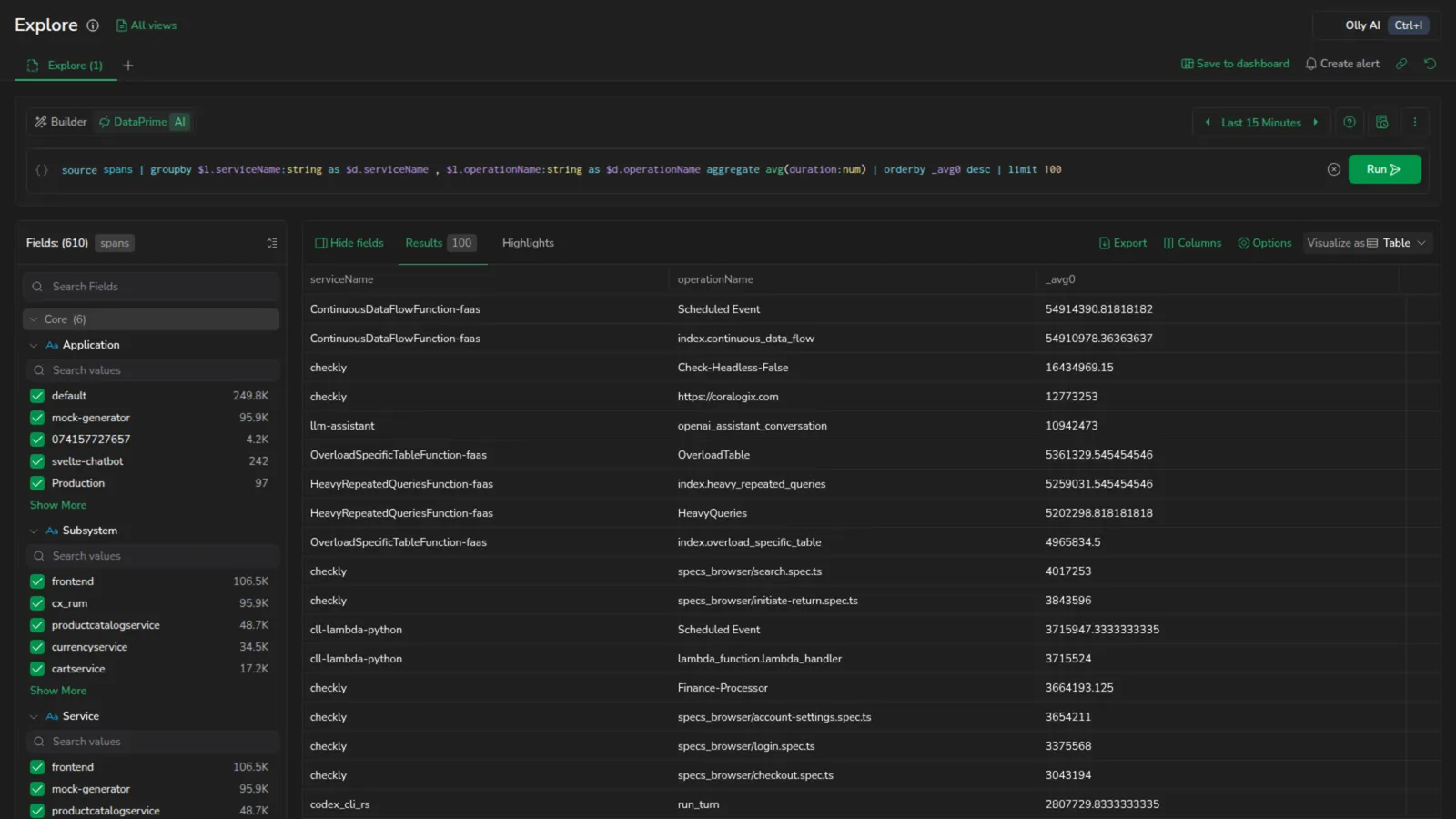 DataPrime mode
Switch to DataPrime
Switch to DataPrime from within Explore:
- Open Explore.
- In the query bar, toggle the syntax switch from Builder to DataPrime.
The search bar is replaced by the DataPrime query editor. The editor opens pre-populated with source <dataset> for the active dataset, or with a translated form of your current Lucene query. Your time range and dataset selection are preserved.
In DataPrime mode, Run and the clear (X) control sit inside the query field itself, at its bottom right, and move down with the field as your query grows past a single line. This reclaims the row that Builder mode uses for its clause chips. One consequence is that the chart show and hide toggle from that row isn't available in DataPrime mode: collapse or restore the chart from the chevron in its own header instead. See Collapse the chart.
Write a query
DataPrime uses a pipeline syntax: each step in the pipeline transforms or filters the data passed from the previous step. Start with a source statement, then chain operators with the | pipe character.
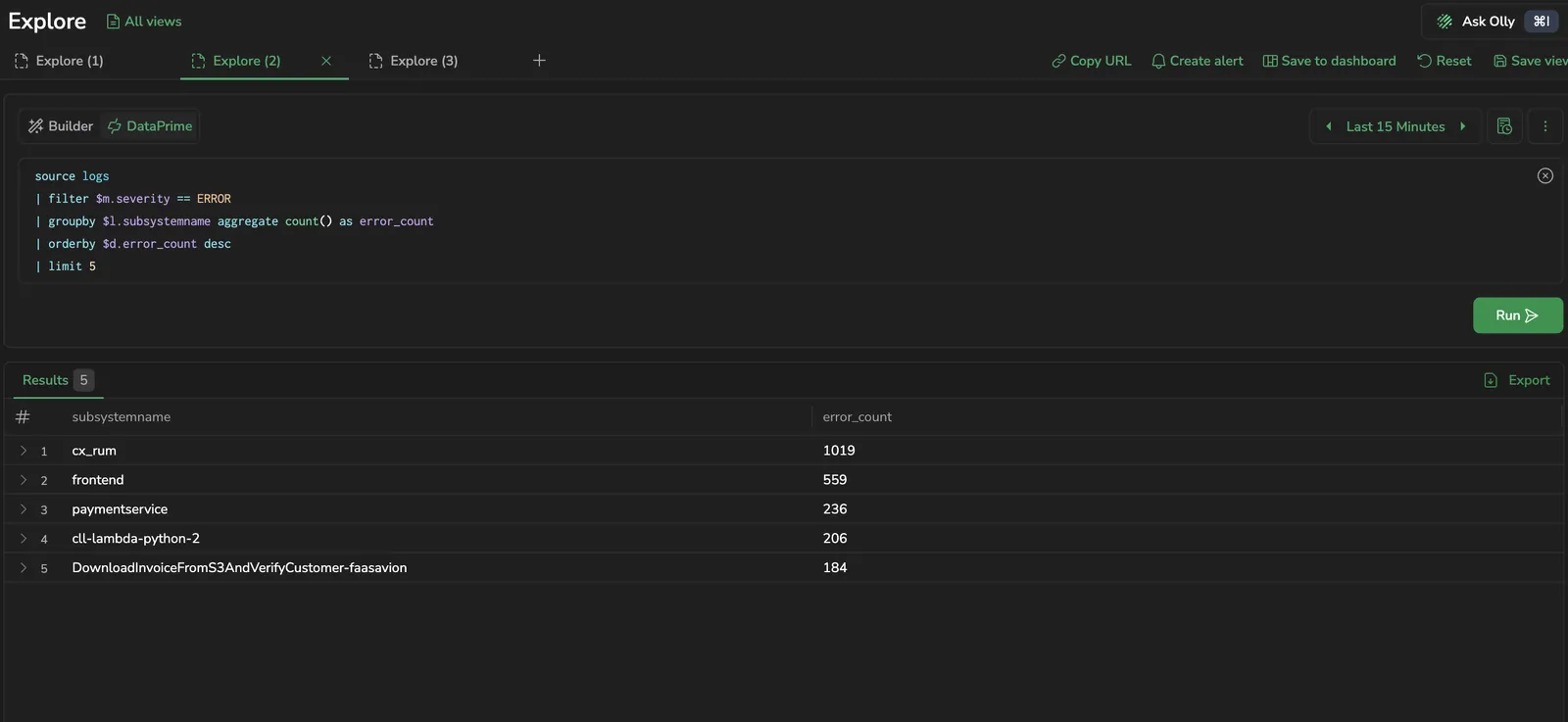
Example query. Filter for errors and group by subsystem:
source logs
| filter $m.severity == ERROR
| groupby $l.subsystemname aggregate count() as error_count
| orderby $d.error_count desc
| limit 5
This query:
- Sources data from the
logsdataset. - Filters to log entries where severity is
ERROR(a Coralogix metadata enum, no quotes). - Groups the filtered logs by subsystem and counts them.
- Orders results by error count, highest first. Reference the alias
error_countas$d.error_count. It lives in the user-data namespace after the aggregation. - Limits results to the top 5 subsystems.
Spans use the same pipeline syntax with source spans. For example, top 5 services by average span duration:
source spans
| groupby $l.serviceName aggregate avg($m.duration) as avg_duration
| orderby $d.avg_duration desc
| limit 5
Use $d for user-data fields, $m for Coralogix metadata (severity, applicationname, subsystemname, timestamp, duration), and $l for user labels and OpenTelemetry semantic-convention attributes (serviceName, operationName, and so on). See the DataPrime documentation for the full namespace reference.
Filter with the Fields panel
The Fields panel works in DataPrime mode. Expand a field to see its values, then select values or field actions to filter, add columns, or group by. Your selections are written into the query as filter clauses at the start of the pipeline, and the panel stays in sync as you edit the query directly. Value counts and distributions work here too.
Generate a query with Olly
In DataPrime mode, describe what you're looking for in plain language and let Olly write the query for you. The AI query prompt sits above the DataPrime editor.

- In DataPrime mode, enter your request in the prompt box (Ask Olly to write a query…).
- Select Generate query or press Enter. Olly generates a DataPrime query for the dataset you've selected (logs, spans, or any other dataset you query in Explore) and places it in the editor.
- Review and adjust the query, then run it. If your request implies a time range (for example, "errors in the last 3 hours") Olly sets the time picker to that window when you run the query.
To hide or show the prompt, open the query builder's actions menu and select Hide Prompt AI or Show Prompt AI.
Generating a query consumes AI units; writing DataPrime queries yourself is always free. For enablement, more examples, and limitations, see DataPrime query assistance.
DataPrime cheat sheet
Explore includes a built-in DataPrime reference so you can look up syntax without leaving the query editor. When DataPrime is the active syntax, select the help icon in the query bar to open the cheat sheet in a panel beside the results. The help icon appears only in DataPrime mode.

Use the cheat sheet to:
- Browse by section: select a section from the outline dropdown to jump to it. The dropdown tracks the section you're reading as you scroll.
- Search: enter a term in the search box to highlight matches across the reference and move between them.
- Copy an example: hover over a code snippet and select the copy button, then paste the query into the editor.
Select the close button, or the help icon again, to hide the panel.
Lucene to DataPrime
Switching from Builder to DataPrime seeds the editor with a translated form of your Lucene query when one exists, otherwise with source <dataset> for the active dataset. The translation is structural, not semantic. Review the result and adjust as needed.
DataPrime field references use a prefix notation: $d for log data fields, $m for metadata fields, and $l for user labels.
A confirmation dialog only appears when you leave a Builder-only context (Templates, Traces, Flows, or RED metrics). Its buttons are Cancel, Open DataPrime in new tab, and Convert to DataPrime. For a normal Logs tab in Lucene, the toggle switches without confirmation.
Switch back to the query builder
If you switch from DataPrime back to Builder without editing the DataPrime expression, Explore restores your original Builder filters, Grouped by, and Aggregation as they were before the switch. Your Builder state remains intact.
If you edit the DataPrime expression and then switch back, Explore opens a Please note dialog with three options:
- Cancel: stay in DataPrime.
- Open Lucene in new tab: preserve the DataPrime query in the current tab and open a fresh tab in Builder.
- Discard query: return to Builder on the dataset's default empty state, discarding the DataPrime query.
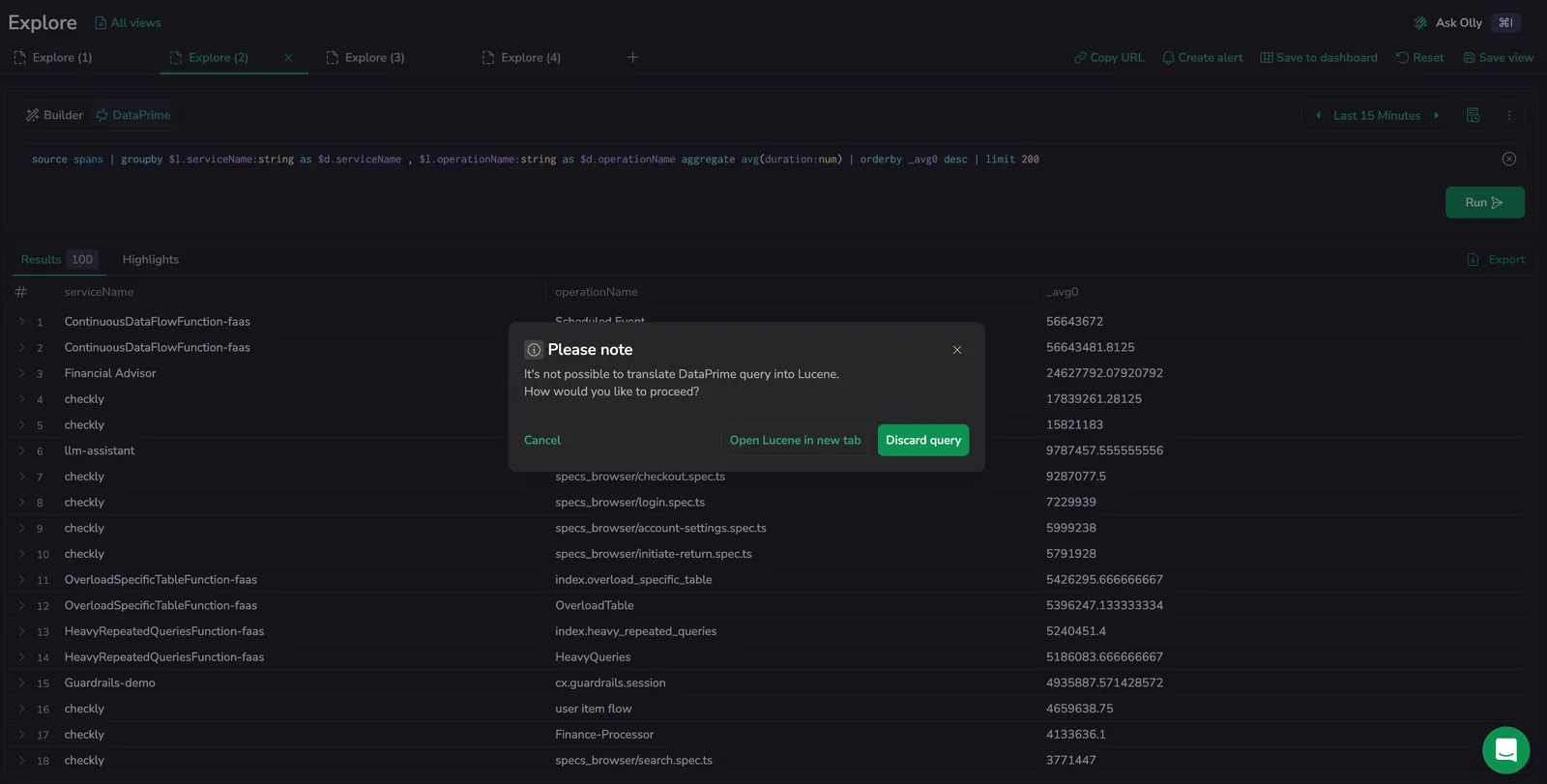
The saved Builder state lives in the current tab only. Refresh the page or open a new tab to clear it.
Work with results
DataPrime results appear in a single Results tab below the query editor. The tab header shows the row count next to its name (for example, Results 5).
On the spans dataset, the Highlights tab is the one Builder-mode view preserved when you switch to DataPrime, running a DataPrime query while on the Highlights tab keeps you on Highlights instead of dropping you to Results. The other spans views (Spans, Traces, Flows, RED metrics) collapse into the single Results tab.
Raw results
Queries without a groupby operator return individual log records, one row per matching log. Each row is expandable in place; expand a row to inspect its fields. Use the column headers to sort by any column.
Aggregated results
Queries with a groupby operator return one row per group. Columns include each grouping field and the aliased aggregation outputs, for example, subsystemname and error_count from the example above.
Chart visualizations
On a time-based dataset, DataPrime renders a count-over-time chart above the Results table for non-aggregation queries. The same time-series chart Builder shows. The chart plots the record count across your selected time range.
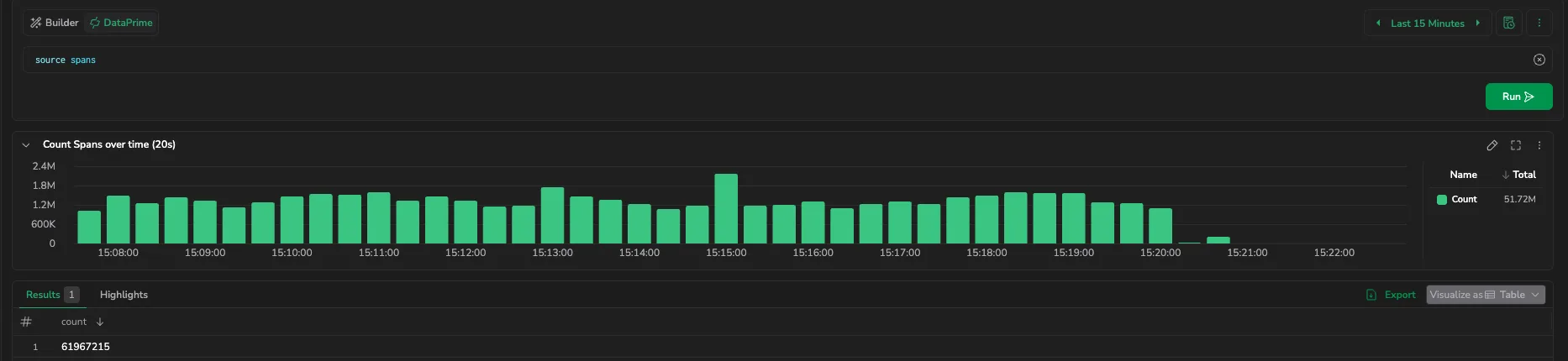
Aggregation queries (those with a groupby or aggregate operator) return straight to the results table without the chart.
Use the Visualize as selector in the results header to change how results are displayed.
Related resources
Next steps
Plot DataPrime results over time with the time-series chart.