Linked widgets
Reuse widgets across Custom Dashboards without recreating them. A linked widget references a widget from another dashboard, stays in sync with the source, and updates automatically when the original changes.
Linked widgets are read-only and reflect the configuration of the source widget. This is different from sharing a dashboard URL, which creates a shareable link to a full dashboard. Linked widgets let you embed an individual widget from one dashboard into another.
Use linked widgets to maintain consistent visualizations across teams, without duplicating query configuration. When you need to customize a linked widget, unlink it to create an independent, editable copy.
What you need
- A Custom Dashboard with at least one widget to reference
- The
team-dashboards:Readpermission to view available widgets across dashboards
Browse the Widgets library
The Widgets library displays all widgets available to you across all dashboards, based on your access policies.
- Open a Custom Dashboard.
- Select + New in the left-hand panel.
- Select the Widgets library tab.
The library displays a searchable catalog of widgets grouped by source dashboard. Each widget card shows:
- A widget-type icon and the widget name.
- The source dashboard, optionally followed by
/ <section>when the widget lives in a section. - The creator's name.
- A usage count, how many other widgets reference this one. The count is hidden when zero, and hovering it shows the tooltip Used 1 time or Used N times.
Search tips
Use the search bar to filter by widget name, dashboard name, section, or creator.
Results are ranked by relevance. Exact name matches appear first, followed by partial matches. If you type a prefix or substring, the search returns all widgets whose name or metadata contains that string.
If you cannot find a widget you expect to see, check:
- Whether you have access to the source dashboard (see I can't find a widget)
- Whether the search term matches the widget name exactly. Try a shorter prefix if needed
Empty states
The Widgets library displays one of two empty states when no widget cards are shown:
- No widgets found. Try adjusting your search or filters. Appears when your search or filters exclude every widget. Clear the search or change the filter to see results.
- No widgets available: Appears when the library has no widgets you can access. Confirm that source dashboards exist and that you have permission to view them.
Add a linked widget
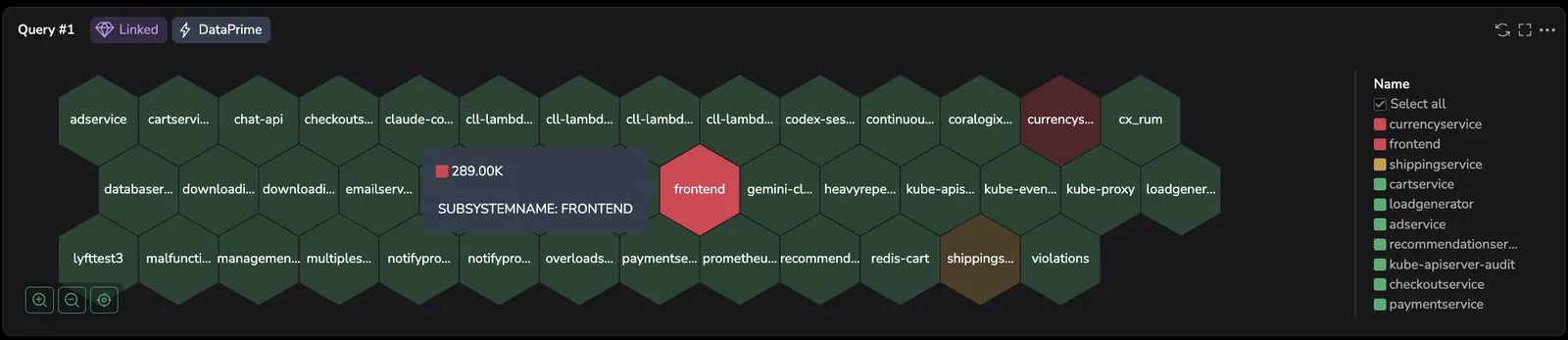
Drag and drop a widget from the Widgets library into your dashboard. The widget appears with a purple Linked badge in the header, indicating that it references a source widget in another dashboard. To separate it from the source, select Unlink. See Unlink a linked widget.
Save the dashboard to preserve the linked widget.
Linked widgets that reference variables from their source dashboard require matching variables on the target dashboard to render correctly. If the source widget uses variables that do not exist on your dashboard, the widget may display an error or return empty results. Add the missing variables to your dashboard or unlink the widget and update the query.
Identify linked widgets
Linked widgets are visually distinct from regular widgets:
- A purple Linked badge appears in the widget header. Hovering the badge shows the tooltip: This widget is linked to a source reference widget. Changes to the source are automatically reflected here.
Work with a linked widget
Linked widgets render identically to regular widgets but cannot be edited in place.
Available actions
The following actions are available for linked widgets:
- View query
- View settings
- Export CSV
- Toggle legend
- Copy share URL
- Create alert
- Add to Investigation
Restricted actions
The following actions are not available for linked widgets:
- Edit query
- Edit settings
- Edit description
- Delete
- Clone
Navigate to the source dashboard
To view or edit the original widget, select Go to source dashboard in the widget's 3-dot context menu. The source dashboard opens in a new tab.
Filter and variable scope
When you embed linked widgets on a dashboard, dashboard-level filters and variables apply to them alongside the rest of your widgets. That can cause unwanted refreshes when a linked widget doesn't share filter context with your other widgets, for example, a linked widget from another team's dashboard that uses an unrelated set of filters.
To stop a filter from acting on an unrelated linked widget, scope the filter to apply only to the widgets it should reach. To check which widgets a filter or variable currently affects, hover over it in the dashboard header or open its value selector, a green border highlights every affected widget.
Error states
A linked widget enters an error state when something prevents it from loading data. The widget displays an error message in place of the visualization.
Common causes:
- The source widget references variables that do not exist on the target dashboard
- The source dashboard or widget was deleted
- You no longer have access to the source dashboard
When a widget is in an error state, you can:
- Fix the variables: Add the missing variables to your dashboard so the query can resolve. See Widget requires variables.
- Unlink the widget: Convert it to a standalone widget and update the query manually. See Unlink a linked widget.
Unlink a linked widget
Unlinking converts a linked widget into a regular, editable widget. The widget keeps its current configuration but is no longer connected to the source. It will not receive future updates from the original widget.
-
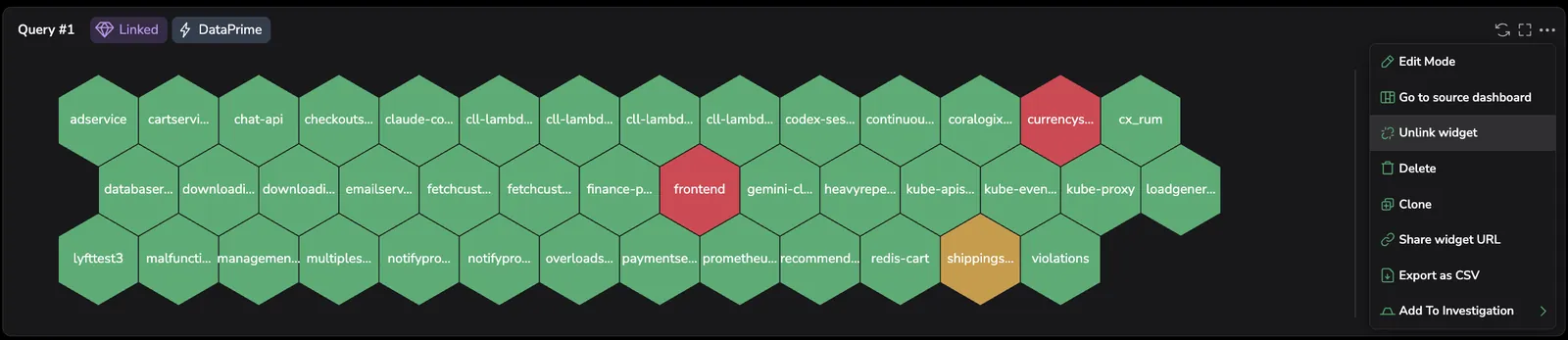
Open the unlink action from one of these locations:
- The widget's 3-dot context menu. Select Unlink widget.
- The right-side panel when the dashboard is in Edit mode. Select Unlink.
-
In the confirmation dialog. Unlink this widget? It will become a standalone widget and will no longer update from the source.. Select Unlink.
-
Save the dashboard to preserve the change.
After unlinking, you can edit, delete, and clone the widget like any other widget on the dashboard.
When to use linked vs standalone widgets
| Linked widget | Standalone widget | |
|---|---|---|
| Stays in sync with source | Yes | No |
| Editable | No | Yes |
| Best for | Standardized views reused across teams | Custom variations of an existing widget |
Use a linked widget when you want a centrally maintained visualization, for example, a standard CPU usage widget that a platform team owns and multiple product teams embed. Unlink when you need to adapt the widget's query or layout for your specific context.
Troubleshooting
I can't find a widget
If a widget you expect to see does not appear in the Widgets library, possible reasons include:
- Access permissions: The source dashboard has a policy that restricts your access. Contact the dashboard owner to request access.
- Search filters: The widget name or metadata may not match your search term. Try a shorter or different search string.
- Widget no longer exists: The widget or its source dashboard may have been deleted. If this widget is already on your dashboard, it will enter an error state.
Widget requires variables
A widget may display an error or empty results if the source widget's query uses variables that do not exist on your dashboard.
Why this happens: Variable values are not transferred when you add a linked widget. The widget's query references variable names that must exist on the target dashboard.
How to resolve:
- Add the missing variables: Open the source dashboard to see which variables the widget uses, then add variables with the same names to your dashboard. The widget resolves once the variables are present.
- Unlink and edit: Unlink the widget and modify the query to remove or replace the variable references.
Linked widget displays an error
See Error states for a full list of causes and available actions.
Linked widget shows no data
A widget may render without errors but return empty results if the source widget's query depends on filters or variables that have different values in the current context. Open the source dashboard to verify that the widget produces data under the same time range and filters.
Widget behavior differs from the source
Linked widgets reflect the source widget's configuration at query time. If the source widget was recently updated, reload the page to pick up the latest version.