Saved views
The APM catalog opens in tabs, and each tab is a view. A view captures the entity scope, the sidebar filters, the visible columns and their column mode (Health or Ownership), and any active comparison - so you can keep a purpose-built cut of the catalog and return to it in one click.
APM saved views are part of the Saved Views shared component used across Coralogix products. The core experience is the same in each product; the options that get saved differ.
What an APM saved view captures
| Option | Description |
|---|---|
| Entity scope | Whether the view shows Services or Databases. |
| Filters | The sidebar filters applied to the catalog, such as environment, team, and health. |
| Columns | The visible columns and their column mode - Health or Ownership. |
| Comparison | Any active compare-to-previous-period selection. |
Create a saved view
- Configure the catalog: choose the entity scope, apply the sidebar filters, and arrange the columns.
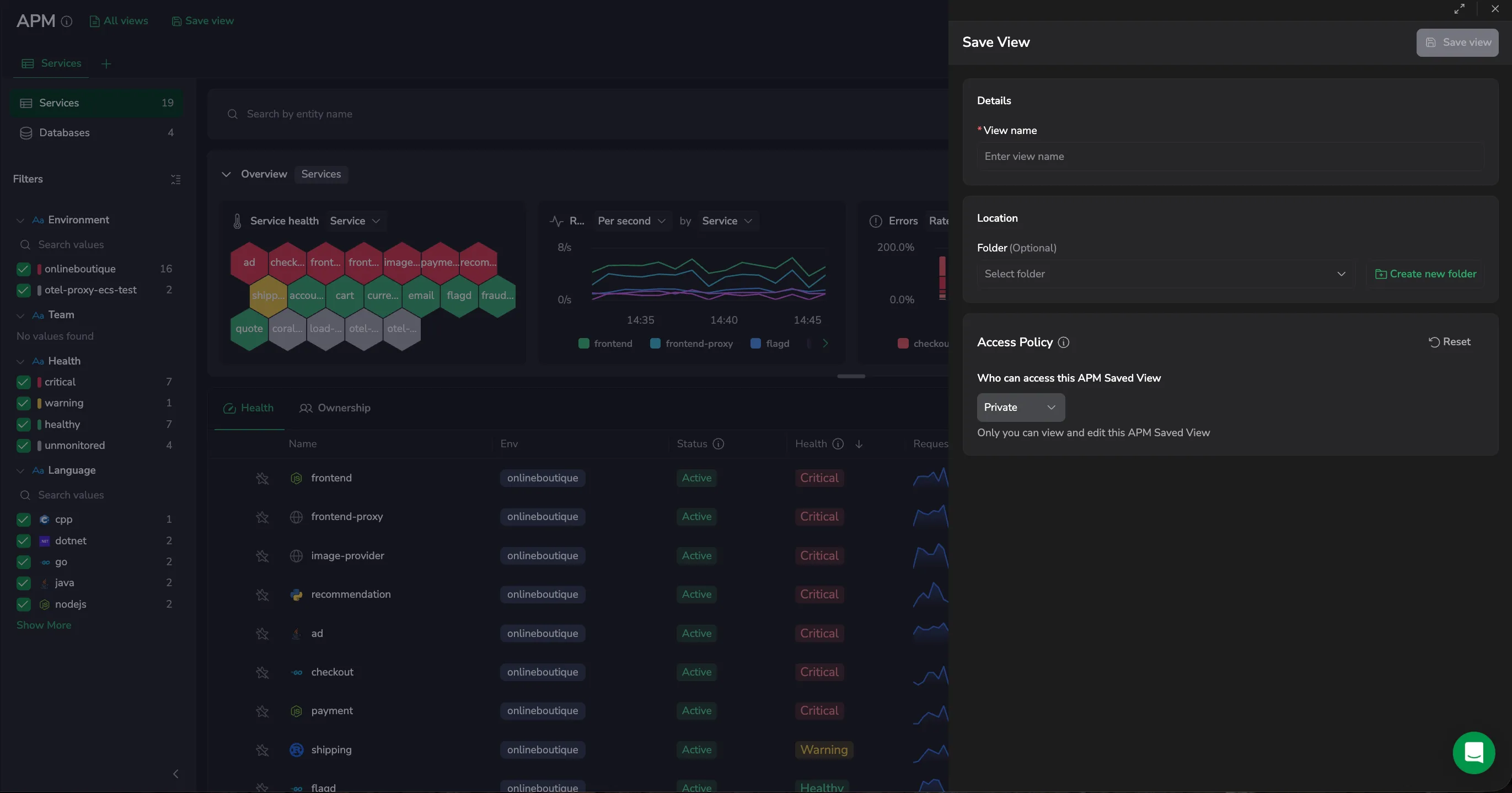
- Select Save view.
- In View name, enter a descriptive name.
- (Optional) Under Location, select a Folder for the view, or select Create new folder.
- (Optional) Set the Access policy to control who can view and edit the view. See Access policy.
- Select Save view.
Work with views as tabs
The catalog opens views as tabs along the top:
- Select Add view (+) to open another view in a new tab, and Close tab to dismiss one. You can open up to a set number of views at once.
- Reorder tabs by dragging them, or with Cmd/Ctrl + Shift + arrow keys; the order persists when you reload.
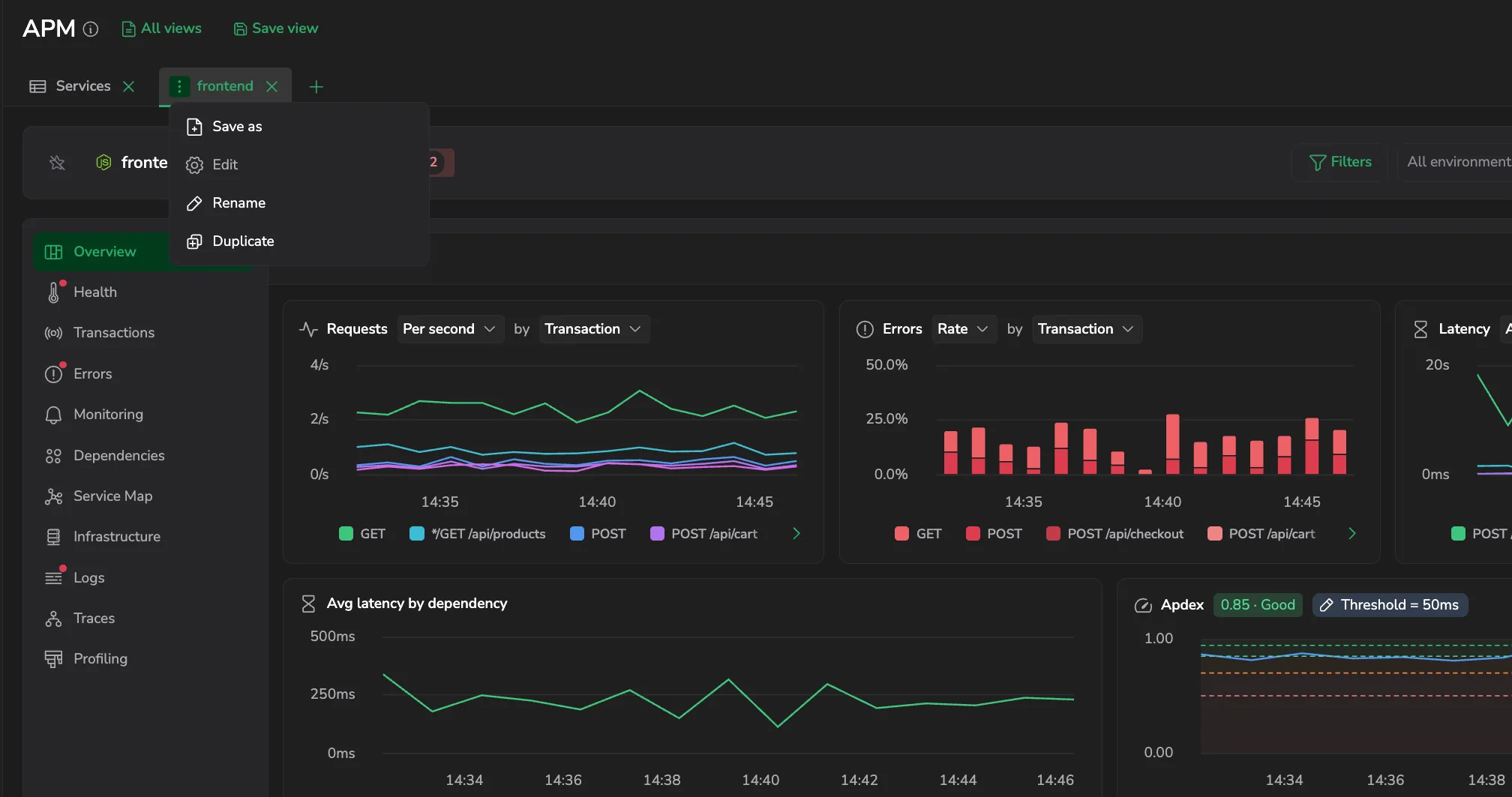
- Select Save view to save the current tab, or Save as to branch it into a separate view. Save view appears only when the tab has unsaved changes; on an already-saved view it reads Save changes.
- A tab's actions menu also lets you Edit, Rename, or Duplicate the view.
- A tab with pending changes shows an unsaved changes indicator until you save it.
Use saved views
- Select All views to open the saved views panel.
- Find views under Recent or All views.
- Use Search saved views to locate a view by name.
- Select a saved view to apply it.
Update or save as new view
When a loaded view has unsaved changes, the Save view menu provides:
- Update current view: Save the changes to the loaded view.
- Save as new view: Save the changes as a new view, leaving the original unchanged.
Edit, clone, or delete a saved view
Share a saved view
To share a saved view with a teammate, copy the page URL after the saved view is loaded. Opening the URL applies the same query, filters, table settings, and time range.
Access policy
By default, a view is Private - only you can view and edit it. To share it with everyone on your team, switch the mode to Public. To configure per-group access rules, switch to Advanced. The access levels available in Advanced mode are:
- No Access: team members cannot see the view unless they have an explicit group rule.
- Read: everyone on your team can see and load the view.
- Manage: everyone on your team can see, load, and modify the view.
For the cross-product model, examples, and FAQs, see the access policies overview.
Permissions
APM saved views are governed by dedicated permissions: APM-SAVED-VIEWS:READ and APM-SAVED-VIEWS:MANAGE to load and manage views, APM-SAVED-VIEWS:READACCESSPOLICY and APM-SAVED-VIEWS:UPDATEACCESSPOLICY for their access policies, and APM-TEAM-DEFAULT-VIEWS:READ and APM-TEAM-DEFAULT-VIEWS:MANAGE for team-level default views. See the APM section of the permissions list.
Next steps
Open a service or database to explore its telemetry in the entity drilldown.