Configure an alert definition
An alert definition is a rule that tells Coralogix what to monitor, when to fire, and how to notify. The alert creation wizard takes you through three steps in the order that mirrors how you actually think about an alert: configure the signal and what counts as a problem, decide how to respond, and only then name, label, and schedule it.
Why the wizard is shaped this way
Earlier versions of the form asked for a name, description, and labels before you had even chosen the data to monitor. The new wizard moves that metadata to the end of the flow because the most useful name, description, and labels are the ones written after you understand the full context of the alert. Each step builds on the previous one, and you can step back at any point without losing earlier choices.
Alert creation workflow
What you need
- At least one data source (logs, metrics, traces, or security data) ingesting
- A clear idea of the condition or pattern you want to monitor
- A Notification Center connector or routing label set up if you plan to send notifications outside Coralogix
- The
UPDATECONFIGpermission for the alert type you are creating, for example,ALERTS:LOGSUPDATECONFIGfor log alerts orALERTS:METRICSUPDATECONFIGfor metric alerts. See Alerting permissions for the full list by type.
Step 1: Configuration
The wizard opens on Configuration, where you select what to monitor and what counts as a problem. A preview panel runs alongside the form and updates as you build.
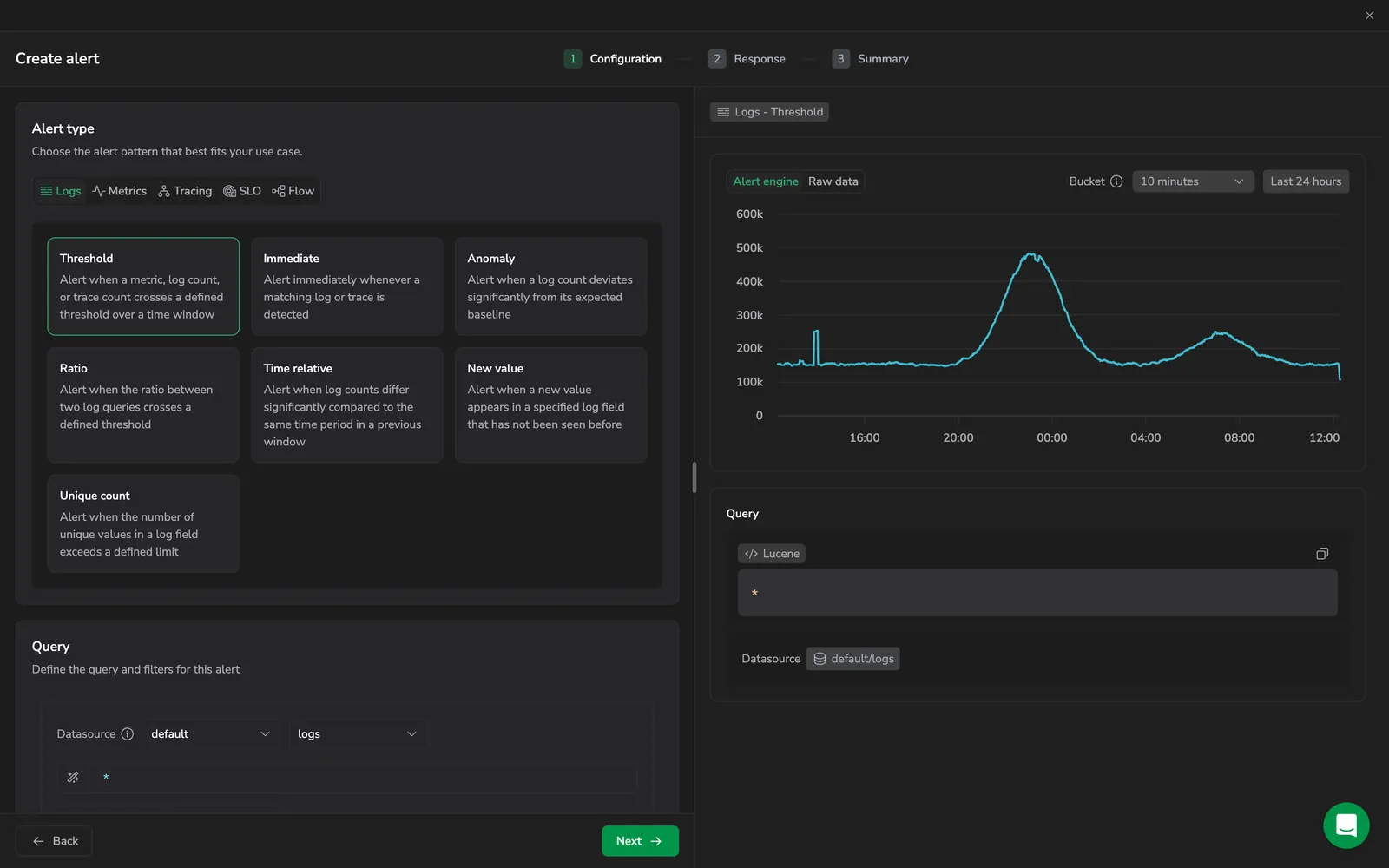
Displays the Configuration step with a Logs threshold alert selected and its preview panel.
Select the alert type
Select the data the alert watches from Logs, Metrics, Tracing, SLO, or Flow, then select the pattern that matches what you want to catch.
| Alert type | Use it when |
|---|---|
| Threshold | A metric, log count, or trace count crosses a fixed level over a time window |
| Anomaly | A log or metric count deviates significantly from its learned baseline |
| Immediate | You want a notification on every matching log or trace as soon as it arrives |
| Ratio | The ratio between two log queries crosses a defined threshold |
| Time relative | Current log counts differ significantly from the same window in a prior period |
| New value | A previously unseen value appears in a specified log field |
| Unique count | The number of unique values in a log field exceeds a limit |
| SLO | An SLO error budget is consumed faster than expected |
| Flow | A defined sequence of alerts occurs within a time window |
You select the alert type when you create the alert, and you cannot change it afterward, including while editing an existing alert. To switch an existing alert to a different type, create a new alert of the type you want, reconfigure its query and conditions using the original as a reference, then delete the original once the replacement is active.
Define the signal
After selecting a type, define the signal:
- Logs and traces: write a Lucene query and narrow it with filters such as application, subsystem, severity, or tag.
- Metrics: switch between Builder and Query to construct a PromQL expression, group by labels, and preview the result series.
The preview panel runs in the background as you build. Toggle it between Alert engine, which shows how Coralogix evaluates the alert, and Raw data, which shows the underlying series, and set the bucket size and time range at the top of the chart. It evaluates the full alert definition over the selected range, highlights the time frames that triggered, and respects any duration requirement you set in the condition. The preview is the fastest way to catch a query that is too noisy or too quiet before you ever save the alert.
Preview results can differ from live evaluation due to metric ingestion delays, over-time aggregations, or complex expressions. When a query returns more than 20 series, the preview shows a sample of up to 20 permutations: narrow your grouping or add filters to evaluate a specific one.
Set the condition
The condition turns the query into an actionable rule. You set the threshold logic, the priority, and what happens when data is missing.
- Trigger logic: express the condition in plain terms, for example more than 100 in 5 minutes, at least once in 30 minutes, or for over 30 minutes. The duration choice matters: "at least once" highlights each crossing, while "for over" requires a continuous breach.
- Priority: assign P1 through P5. Priority drives routing decisions later in the Response step.
- Group by: count and evaluate separately for each combination of label values. Only events that contain all selected fields are considered.
- Missing data behavior: pick the state the alert holds when the source returns no data: Set OK, Set alerting, Keep last state, or Set no data state. Add Auto retire to clear stale alerts after a defined period.
- Advanced configurations: delay evaluation by a fixed number of seconds to absorb late-arriving data. See Custom evaluation delay for when this matters.
You can add multiple conditions to the same alert when you need tiered severity from a single query. See Multiple alert conditions.
Handle gaps in the data
Data gaps handling, under Advanced configurations, decides what the evaluator does when part of the time frame comes back empty. It is the difference between an alert that fires on a half-reported window and one that waits for the full picture.
This control applies to metric threshold and metric anomaly alerts. Log, trace, and dataset alerts do not offer it.
It is not the same as Missing data behavior above. That setting covers the source returning nothing at all, while this one covers part of the window being empty.
Two settings cover the gap:
- Replace missing values with 0 counts every empty point as a zero, so the alert evaluates a complete series. Available on metric threshold alerts.
- At least
N% of the timeframe needs to have values for this alert to trigger sets how much of the window must carry data before the alert can fire. Accepts a value from 0 to 100.
The two are mutually exclusive. Selecting Replace missing values with 0 disables the percentage, because filling the gaps leaves no coverage left to measure.
Which one you want depends on what an absent value means for your metric. If a missing point genuinely means zero, such as a counter that reports nothing because nothing happened, replace missing values with 0. If a missing point means you do not know, such as a host that stopped shipping halfway through the window, raise the percentage instead so a partial window cannot trigger on its own.
Step 2: Response
The Response step is where you decide what an alert is for.
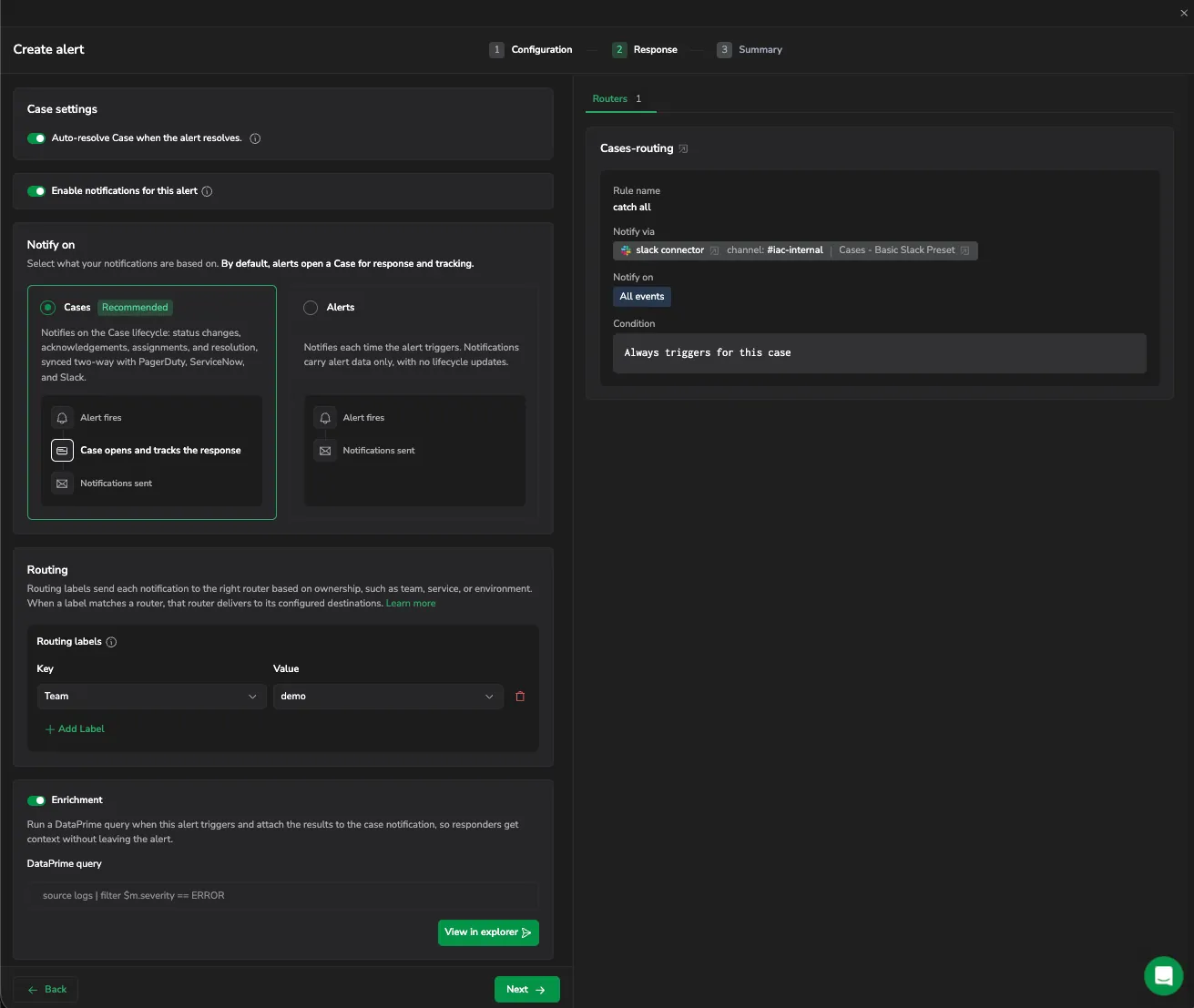
Displays the Response step with Cases selected and a matching router in the side panel.
Coralogix encourages you to think of notifications in terms of operational outcomes (opening a Case that someone owns and resolves) rather than raw webhook fan-out.
Pick what triggers the notification
- Cases (badged Recommended): opens a Case when the alert fires. Cases unify related alerts into one operational incident with bi-directional ITSM sync, lifecycle tracking, ownership, and SLA management. Most teams should start here.
- Alerts: notifies each time the alert triggers, carrying alert data with no lifecycle updates. Use this when you want a thin, fire-and-forget signal, for example broadcasting to a chat channel, paging on threshold or forecast triggers, or driving custom webhooks. Legacy outbound webhooks live inside this option as Custom notifications.
Set how Cases open
These settings appear when the notification opens a Case.
- Case settings: when Group by is set, decide whether matching combinations open a Combined case (one Case aggregating all values that meet the condition) or Separate cases (one Case per combination). Combined is best for fleet-wide symptoms; separate is best when each entity owns its own remediation.
- Auto-resolve Case when the alert resolves: on by default. If your Case settings include this toggle, turning it off keeps the Cases this alert opens open until someone resolves them, whatever the signal does. Use it for work that continues after the alert clears, such as a security investigation. For what those Cases look like in Cases, see Working with Cases.
Route the notification
Coralogix matches notifications to routers by routing label rather than by a destination set on the alert. Add one or more routing labels (typically Team, service, or environment) and the system finds the router whose ownership rules match and delivers to its configured connectors and presets. A single alert can then fan out to different destinations as ownership changes, without ever editing the alert.
If no router matches the labels you select, the wizard shows No matching routers in the side panel. See Routing rules for how to author one.
For the rest of the step, including enrichment, see Notification settings.
Tune cadence
- Notify every: how often a re-fire notification is sent while the condition stays true, for example every 10 minutes.
- Notify when resolved: turn on a follow-up notification when the condition clears. Resolution is automatic on the next evaluation cycle; resolving manually from the Incidents screen does not emit a notification.
Terraform and API users: verify the notifyOn field. Setting it to triggered_only suppresses resolved notifications even if the toggle appears on in the UI. See Troubleshoot alerting.
Step 3: Summary
By the time you reach Summary, you know exactly what this alert watches and how it routes. That is the right moment to name it, and to review the whole definition before you save.
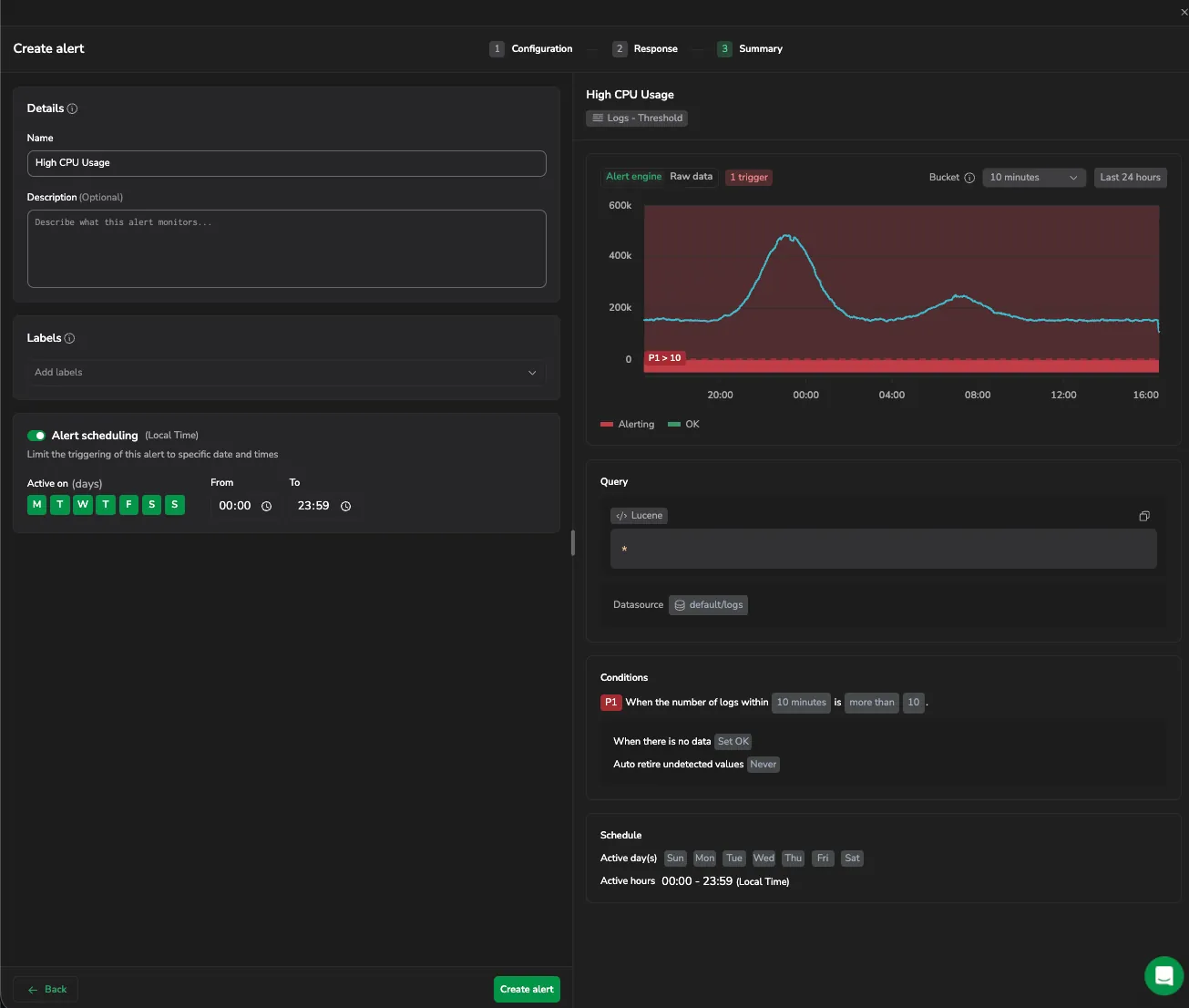
Displays the Summary step with the alert details beside a review of the full definition.
- Name: write the name your responders will read under pressure. "High CPU on production payment-service" beats "CPU alert".
- Description (optional): capture the reasoning behind the alert: what it detects, links to runbooks, and what the on-call should do first.
- Labels (optional): add key:value pairs that downstream tooling filters on. Labels also classify alerts in the Incidents view. APM alerts use
product:apm-service-catalogorproduct:apm-db-catalog; security alerts can usealert_type:securitycheckor the Set as security alert option. See Define alert details for the full label reference. - Alert scheduling (optional): restrict triggering to the days and hours when the alert makes sense, for example business hours only.
When everything is in place, select Create alert. The alert becomes active within 15 minutes.
Manage alert access
Set access per individual alert with an access policy. The policy applies on top of role permissions, so effective access is the role permission and the alert's policy. A policy can only narrow access, never widen it.
The Access Policy card sits at the bottom of the Summary step when you create or edit an alert. You need the read access policy permission to see the card, and the update access policy permission to change it.
The policy also governs the cases this alert opens. Cases have no access policy of their own, so narrowing access here also narrows who can reach the resulting cases.
Pick an access level
Who can access this Alerts offers three settings:
| Setting | Who gets access |
|---|---|
| Public | Everyone on the team with role-based access can view and edit the alert. This is the default. |
| Private | Only you can view and edit the alert. |
| Advanced | You define the access yourself, per group. See below. |
Public and Private need nothing further. Select one and carry on.
Define access per group
Selecting Advanced opens the full editor.
- Under General access, set the default level for everyone on the team. This is the level anyone gets unless a rule below gives them another.
- To override that for particular groups, search for them in Add groups to define a rule and set the level those groups get. Each rule needs at least one group.
- To add another rule, select + Add. To remove one, select the remove icon beside it.
- To control who can change the policy itself, open Policy permissions. A column appears against each rule, including the general access row, where you set who can edit the policy.
Whoever creates the policy becomes its owner, and an owner keeps access to the alert whatever the policy says. A restrictive policy cannot lock you out of the alert you just secured.
Reset returns the card to its default: general access back to the resource's preset, and every custom role, override, scope and filter removed. Coralogix asks you to confirm first.
For the cross-product model, examples, and FAQs, see the access policies overview.
Limitations
- New and edited alert definitions can take up to 15 minutes to become active.
- The number of Group by permutations is limited to 1000; only the first 1000 are tracked when more exist.
- Lucene queries are limited to 50 operators. Alerts with existing Lucene queries that exceed this limit will return an error when edited. To work around the limit, simplify the query, for example by reducing the number of
ORclauses or moving conditions into the application, subsystem, and severity filters. - If your metrics arrive with a delay (batch processing, cross-region replication), add a custom evaluation delay so the evaluator waits for data to settle.
Next steps
Learn how to configure metric-based queries in Metric-based query.
Having issues with your alert? See Troubleshoot alerting.