Suppression rules
Use Suppression Rules to mute alert notifications during scheduled maintenance, testing, auto-scaling events, or outside working hours.
What you need
- To view suppression rules, you need
SUPPRESSION-RULES:READCONFIG(included in all standard roles). - To create, edit, or delete suppression rules, you need
SUPPRESSION-RULES:UPDATECONFIG(included in Standard User and above; not in Read-Only User).
This feature is available for early-access customers. To request access and confirm your organization meets the feature criteria, contact your account representative or Support.
How suppression rules work
Suppression Rules automatically mute alerts according to parameters you define. You set what to suppress (which key:value attributes), when to suppress (a one-time or recurring time window), and which alerts the rule applies to.
Suppression Rules disable notifications, not alert evaluation. A suppressed alert keeps evaluating, but no notification is sent and no Case is created. To stop an alert from evaluating entirely, disable the alert definition instead.
Start from a preset to configure a rule with minimal effort:
- Scheduled maintenance: suppress alerts during planned maintenance windows so routine work doesn't trigger notifications.
- Whitelisting: exempt specific conditions or sources from alerting while keeping the rest of your alerts active.
- Working hours: suppress alerts outside working hours so your team is notified only when it matters.
- System upgrade: suppress alerts temporarily while you run an upgrade.
- Blank rule: start from scratch and configure every field yourself.
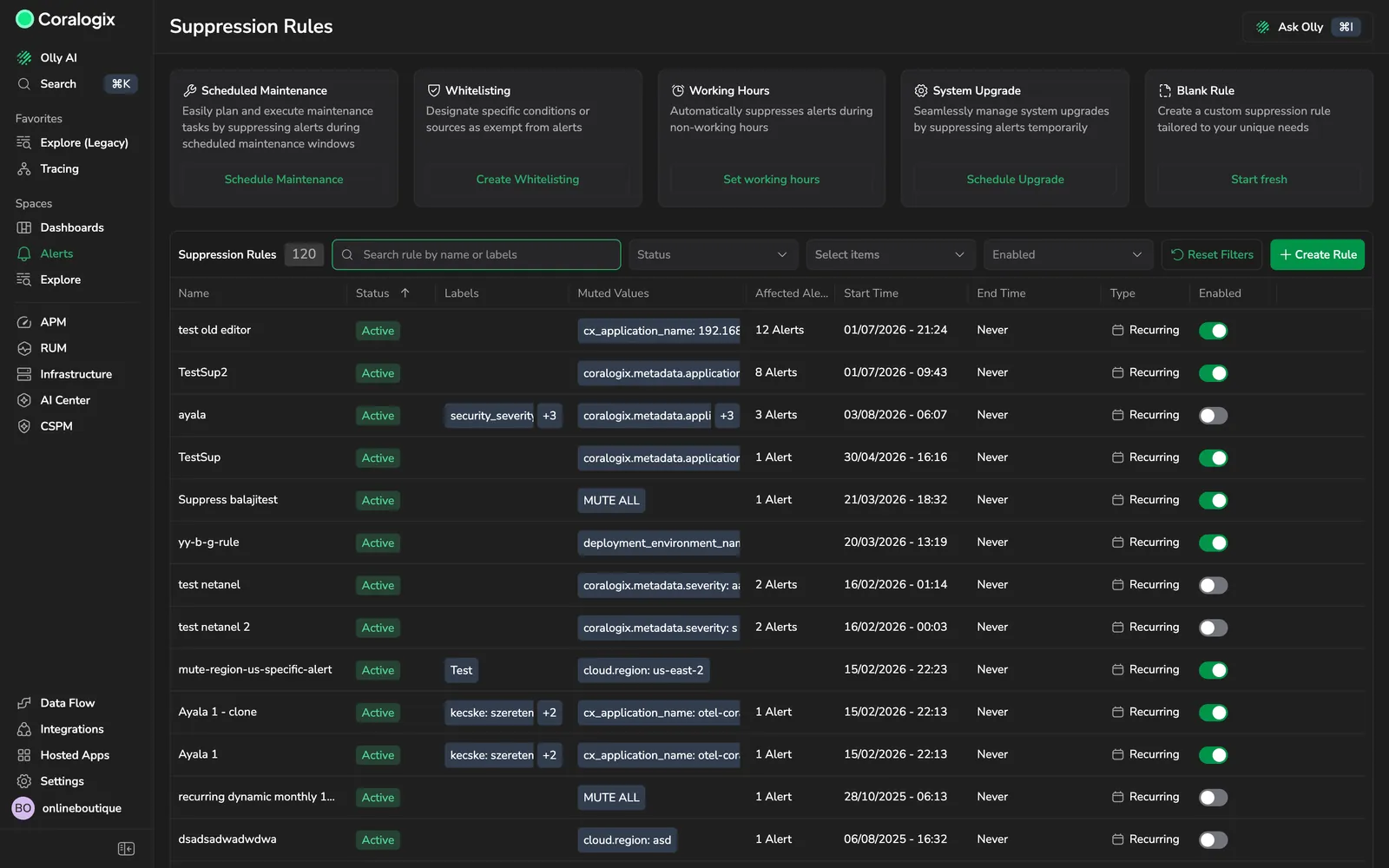
Shows the Suppression Rules page with the preset cards and the rules table.
Create a suppression rule
Go to Alerts, then Suppression Rules.
Select Create rule in the top-right corner, or select a preset card to start from a template.
Enter a Name. Optionally add a Description and one or more Labels. Labels are metadata you can use to filter and organize your rules.
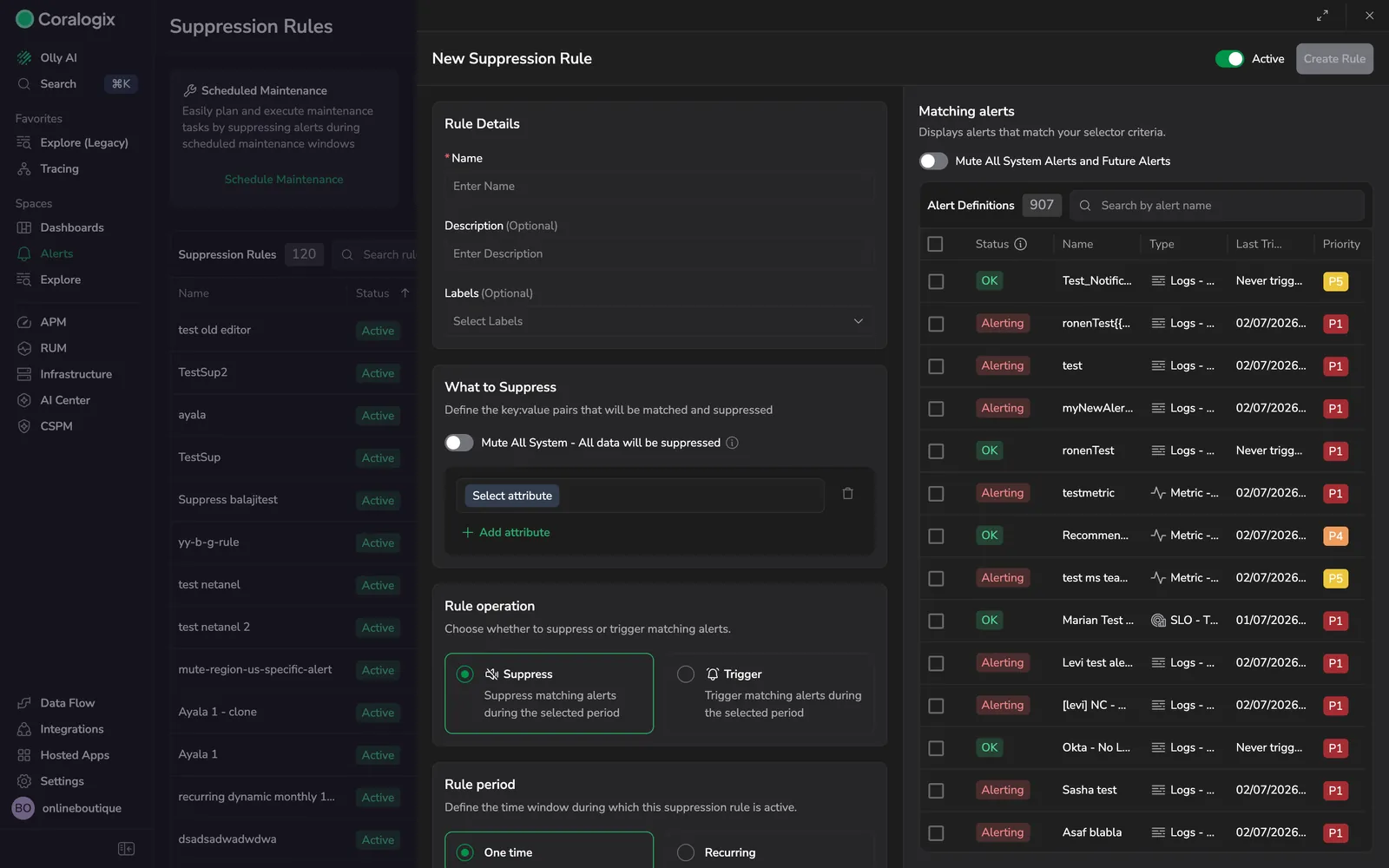
Shows the suppression rule form alongside the matching alerts panel.
Select what to suppress
Under What to suppress, select an attribute and enter one or more values to match.
- Select Add attribute to match on more keys. When you set multiple attributes, an alert must contain all of them for the rule to apply.
- When you set multiple values for one attribute, the rule suppresses alerts matching any of those values.
- For attributes in IP-address format, enter an address range in CIDR notation to suppress every alert originating from that range.
- To suppress all matching alerts regardless of attribute values, enable Mute all system. This suppresses every selected alert during the time window, including alerts set to notify immediately and alerts without a group-by key.
Select whether to suppress or trigger
Under Rule operation, select Suppress to mute matching alerts during the period, or Trigger to send matching alerts only during the period.
Set the time window
Under Rule period, select One time or Recurring, then set the schedule.
- For One time, set a Starting date and time, then set the Ending point as either an end Date or a Duration.
- For Recurring, select a Schedule of Specific time or Always, set the recurrence interval under Recurring every, then end it with a Duration or a termination date.
Optionally set a Timezone. The rule uses your browser's local timezone by default. Select any IANA timezone from the dropdown to anchor the rule to a specific region regardless of where you are when you create or edit it.
Summertime (DST) handling: recurring rules follow wall-clock time in the selected timezone. If the timezone observes Daylight Saving Time, the rule shifts automatically at each DST transition. A rule set for 09:00 fires at 09:00 in both summer and winter local time. The corresponding UTC time adjusts by one hour at each transition. One-time rules are not affected because they have a fixed start and end point.
Select which alerts the rule applies to
In the Matching alerts panel, search the alert definitions by name and select the alerts to include. The panel previews which alerts match your current selector criteria.
- To apply the rule to all current and future alerts, enable Mute all system alerts and future alerts.
Select Create rule to save. Use the Active toggle to enable or disable the rule when you save it.
Search tips for matching alerts
The search in Matching alerts matches the text you type against the alert name as an exact, in-order substring. It does not support keywords in any order, partial-word matching, or boolean operators, so a few habits make alerts easier to find:
- Type the words in the order they appear in the alert name. For a name like
PROD1 / us-east-1 / checkout / has no healthy containers, searchPROD1orhas no healthy containers, notPROD1 healthy containers. - Search on a single distinctive fragment, such as a service name or a specific phrase, rather than combining fragments from different parts of the name.
- Adopt a consistent alert naming convention ordered from broad to specific (environment, then region, then service, then symptom), so a prefix search reliably narrows to the correct group.
Manage suppression rules
The Suppression Rules table lists every rule with its name, status, labels, muted values, affected alerts, start and end time, type, and whether it is enabled. Filter the list by status, label, or free text, and use the Enabled toggle to turn a rule on or off without opening it.
Edit, clone, or delete a rule
Open the more actions menu at the end of the rule's row.
Select the action you want to perform:
- Edit: change the rule, then select Save changes.
- Clone: duplicate the rule, adjust it, then select Save changes.
- Delete: remove the rule, then confirm.