Prebuilt evaluation policies
Coralogix AI Center provides prebuilt evaluation policies that automatically assess every prompt and response in real time. These policies help you detect quality issues, security threats, and compliance violations before they impact your users.
This page covers:
- A full list of prebuilt policies with descriptions and guidance on when to use them
- How to create evals for prebuilt policies
- How to manage evals
Understanding evaluation scores
All prebuilt policies return a score between 0 and 1. Each eval compares that score against a threshold to decide the result.
| Score | Label | Marked as issue? |
|---|---|---|
| Meets or exceeds the threshold | High | Yes |
| Does not reach the threshold | Low | No |
The threshold drives the high and low labels, issue tagging, and every overview and analysis view built on them.
Every eval starts with a default threshold of 0.7, so you can apply a policy without configuring anything. Because what counts as an issue differs by use case, you can set a different threshold for each eval, when you add the eval, or afterward from its policy configuration page (see Edit).
Threshold changes apply going forward only. Changing a threshold does not change the labels or issue tags on historical evaluation results.
Available prebuilt policies
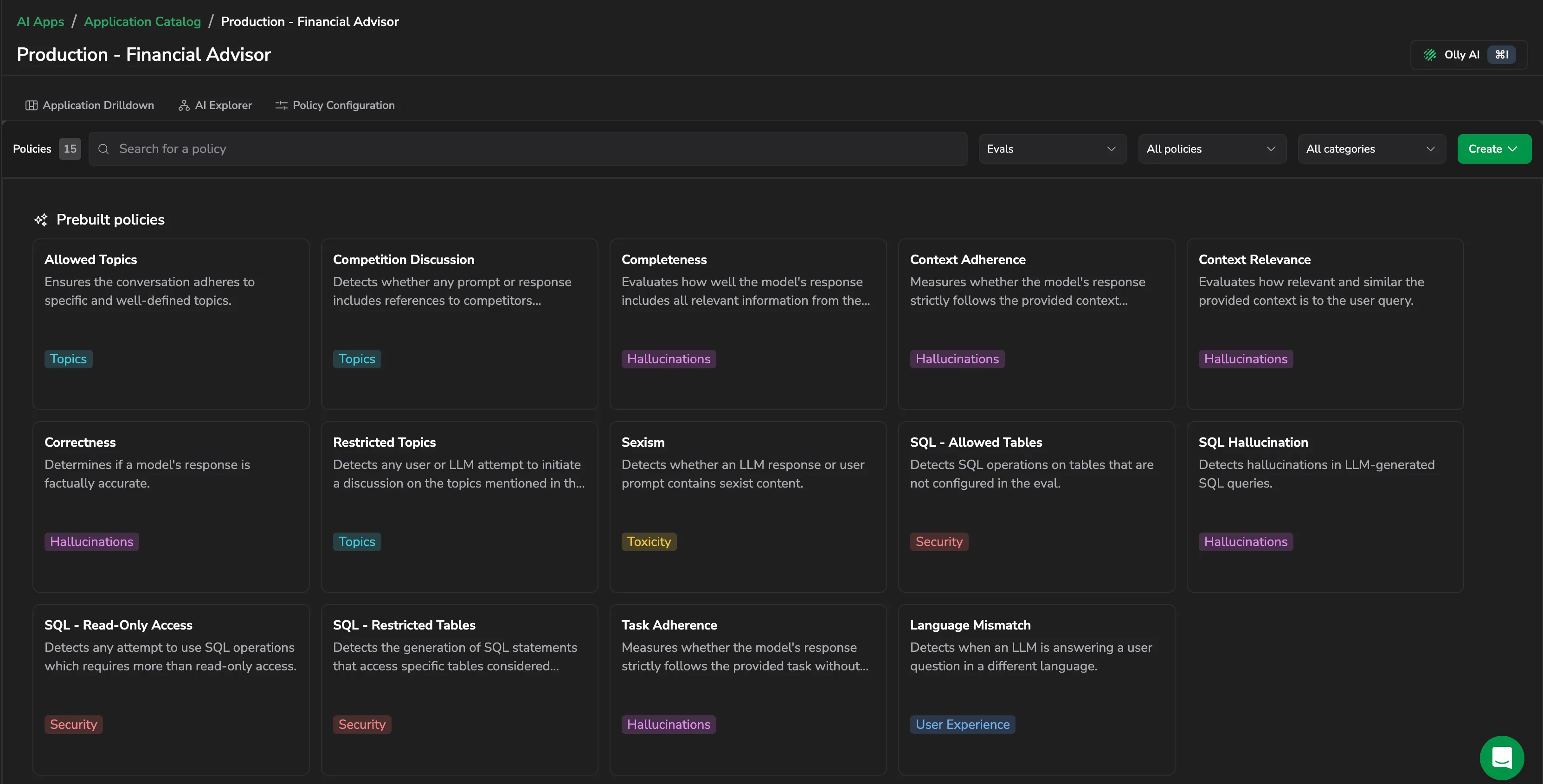
Filter the Policy Catalog to Evals to see the policies available as evaluations. The set you see is scoped to the application you have open, so the count varies between applications.
Hallucinations
Hallucination policies detect when your AI generates content that is factually incorrect, fabricated, or not properly grounded in context.
| Policy | Description | When to use |
|---|---|---|
| Context adherence | Measures whether the model's response strictly follows the provided context without introducing new information. | RAG applications and internal chatbots, when responses must be grounded in specific documents. |
| Context relevance | Assesses how relevant and similar the provided context is to the user query, ensuring it contains the necessary information for an accurate response. | RAG applications, to verify retrieved context actually matches the question. |
| Completeness | Evaluates how well the model's response includes all relevant information from the context. | When you need comprehensive answers that don't omit important details. |
| Correctness | Determines if a model's response is factually accurate. | General-purpose chatbots answering world knowledge questions. |
| SQL Hallucination | Detects hallucinations in LLM-generated SQL queries. | Text-to-SQL applications where query accuracy is critical. |
| Tool parameter correctness | Ensures the correct tools are selected and invoked with accurately derived parameters based on chat history. | Agentic AI applications using function calling or tool use. |
| Task adherence | Detects whether the LLM's answer aligns with the given system prompt. | When your AI must follow specific instructions defined in the system prompt. |
Security
Security policies protect against malicious inputs, unauthorized data access, and dangerous AI-generated content.
| Policy | Description | When to use |
|---|---|---|
| Prompt injection | Detects any user attempt at prompt injection or jailbreak. | All production AI applications with user input. |
| SQL - Read-Only Access | Detects any attempt to use SQL operations requiring more than read-only access. | Text-to-SQL apps where users should only query data, not modify it. |
| SQL (load limit) | Detects SQL statements that are likely to cause significant system load and affect performance. | Preventing expensive queries that could degrade database performance. |
| SQL - Restricted Tables | Detects the generation of SQL statements that access specific tables considered sensitive. | Protecting sensitive data tables from unauthorized access. |
| SQL - Allowed Tables | Detects SQL operations on tables that are not configured in the eval. | Restricting AI to only query approved tables. |
| PII | Detects the existence of PII in the user message or the LLM response based on the configured sensitive data types. | Data privacy compliance (GDPR, HIPAA) and sensitive data leakage prevention. |
Toxicity
Toxicity policies detect harmful, offensive, or inappropriate content in prompts or responses.
| Policy | Description | When to use |
|---|---|---|
| Sexism | Detects whether an LLM response or user prompt contains sexist content. | Ensuring respectful, inclusive AI interactions. |
| Toxicity | Detects any user message or LLM response containing toxicity. | Customer-facing AI, brand safety, and content moderation. |
Topics
Topic policies ensure conversations stay within appropriate boundaries.
| Policy | Description | When to use |
|---|---|---|
| Restricted topics | Detects any user or LLM attempt to initiate a discussion on the topics mentioned in the eval. | Preventing discussions on sensitive or off-limits subjects. |
| Allowed topics | Ensures the conversation adheres to specific and well-defined topics. | Domain-specific assistants that should stay focused. |
| Competition discussion | Detects whether any prompt or response includes references to competitors mentioned in the eval. | Sales and marketing chatbots and brand protection. |
User experience
User experience policies help ensure quality interactions.
| Policy | Description | When to use |
|---|---|---|
| Language mismatch | Detects when an LLM is answering a user question in a different language. | Multi-language support, ensuring consistent language in responses. |
Compliance
Compliance policies help enforce organizational rules and regulations.
| Policy | Description | When to use |
|---|---|---|
| Restricted phrases | Ensures the LLM does not use specified prohibited terms and phrases by blocking or replacing them based on regex patterns. | Brand guidelines, legal compliance, and avoiding specific terminology. |
Create evals for prebuilt policies
Use the Policy Catalog to add an evaluation to a policy.
- Browse the Policy Catalog tiles to find the policy you want.
- If the policy is not visible, use the Search field to locate it.
- To narrow the policy list, select a category or filter by Evaluations.
- On the policy card, select Add eval.
- Configure the evaluation:
- If no configuration is required, Coralogix adds the evaluation to the application immediately.
- If configuration is required, set the relevant options:
- Select whether to run the evaluation on the user prompt, the LLM response, or both.
- Select categories, values, or other attributes available for the policy type.
- Set the Threshold, or keep the default of 0.7. Scores that meet or exceed it count as high and are tagged as issues.
- Select Next.
- In the Add eval to application dialog box, select the application or applications to apply the evaluation to. Applications that already use this evaluation are unavailable.
- Select Done.
Coralogix shows an indicator for evaluation usage in the catalog card, including the number of applications the evaluation applies to.
Manage evals
To manage an eval for a prebuilt policy, open the policy card and select More actions.
Edit
Select Edit to open the policy configuration page and update the policy, including its Threshold. A new threshold applies to evaluations going forward and does not change historical results.
Delete
Select Delete to remove the policy from a specific application.
Next steps
Create policies based on your own criteria and use cases with Custom evaluation policies.