Claude Cowork client-side integration with Coralogix
Cowork is Anthropic's agentic workspace inside Claude Desktop. Rather than responding to prompts sequentially, Claude tackles intricate, multi-step tasks autonomously. Users describe a desired outcome and return to completed work, with direct file access on the local machine, browser automation via Claude in Chrome, and sub-agent coordination for parallel execution.
Cowork emits OpenTelemetry (OTel) telemetry (logs, metrics, and more) natively and is configured at the organization level, so individual users don't need to install anything. Configure it from the Claude admin panel, or, when Claude Desktop runs on a third-party platform, deliver it with managed configuration through your device-management (MDM) tooling. Once enabled, Cowork streams full session activity, token usage, cost estimates, and tool calls into Coralogix.
Configuration from the Claude admin panel is available for Claude Team and Enterprise plans. For Claude Desktop on third-party platforms (Amazon Bedrock, Google Cloud's Agent Platform, Microsoft Foundry, or an LLM gateway), see Claude on third-party platforms.
Data you get per session: cost per session, models used, tool calls, and session activity. Cost figures are estimated based on token usage reported by Cowork directly.
For organization-level actual cost, seat, and governance data, add the Claude Usage & Compliance APIs integration (Enterprise only).
What you need
- A Coralogix account with a Send-Your-Data API key. In Coralogix, navigate to Settings, then API Keys.
- Your Coralogix OTLP endpoint:
ingress.eu2.coralogix.com:443. Use the domain selector at the top of this page to select your region. - One of the following:
- A Claude for Teams or Enterprise account with Cowork enabled, and admin access to the Claude admin panel.
- Claude Desktop 1.30096.1 or later on a third-party platform, and MDM tooling that manages your users' devices.
Set up
Configure from the Claude admin panel
-
In Claude.ai, navigate to Admin Settings, then Cowork, then Monitoring.
-
Fill in the four fields with your Coralogix values:
Field Value OTLP endpoint ingress.eu2.coralogix.com:443OTLP protocol http/protobufOTLP headers Authorization=Bearer <YOUR_CX_API_KEY>Resource attributes cx.application.name=<APP_NAME>,cx.subsystem.name=<SUBSYSTEM_NAME>Replace
<YOUR_CX_API_KEY>with your Send-Your-Data API key, and set<APP_NAME>and<SUBSYSTEM_NAME>to the values you want to use for routing in Coralogix (see Application name and subsystem below).Header formatOTLP headers and Resource attributes must each be a single line with no spaces around commas. Any extra space or newline will cause ingestion to fail.
-
Select Save.
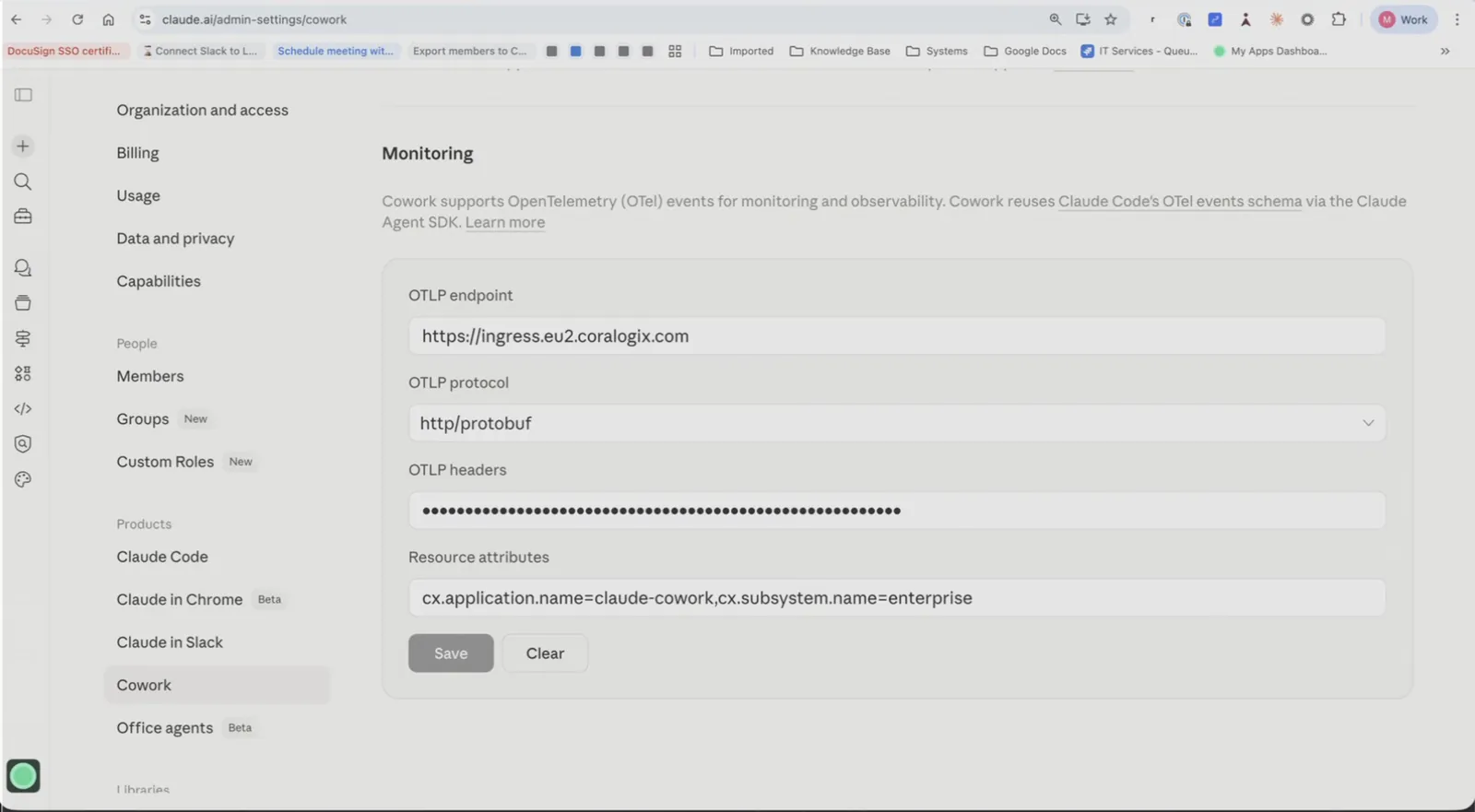
Claude on third-party platforms
Use this method when your users run Claude Desktop against Amazon Bedrock, Google Cloud's Agent Platform, Microsoft Foundry, or an LLM gateway instead of signing in with a Claude account. The Claude admin panel doesn't apply to these users, so you add four Coralogix settings to each device's Claude Desktop configuration with your device-management (MDM) tool, such as Jamf Pro for macOS or Microsoft Intune for Windows. Your devices need Claude Desktop 1.30096.1 or later, already set up for your third-party platform.
The four settings
Every operating system uses the same four required settings. The steps below show where to put them.
| Setting | Value | What it does |
|---|---|---|
otlpEndpoint | https://ingress.eu2.coralogix.com | Where Claude Desktop sends telemetry. |
otlpProtocol | http/protobuf | The format Coralogix expects. |
otlpHeaders | {"Authorization":"Bearer <YOUR_CX_API_KEY>"} | Your Coralogix API key. |
otlpResourceAttributes | {"cx.application.name":"claude-cowork","cx.subsystem.name":"<TEAM_NAME>"} | The application and subsystem names your data appears under in Coralogix. See Application name and subsystem. |
In every example below, replace <YOUR_CX_API_KEY> with your Send-Your-Data API key and <TEAM_NAME> with your team name.
macOS and Windows store every managed value as a string, so otlpHeaders and otlpResourceAttributes go in as JSON text. managed-settings.json on Linux is real JSON, so the same two settings are written as JSON objects. Both forms carry the same values.
On third-party platforms the export carries session metadata only, with no message content. To include content, add a fifth setting, otlpContentCapture, holding a JSON array of the categories you want: userPrompts, assistantResponses, toolDetails, toolContent, or rawApiBodies. For example, ["userPrompts","toolDetails"]. On Claude Desktop 1.17377 or later, userPrompts also captures model responses. Content reaches only your otlpEndpoint, never Anthropic. Read the Sensitive data warning under Monitor data in Coralogix before you turn any category on.
macOS with Jamf Pro
-
Add the settings. In Jamf Pro, go to Computers, then Configuration Profiles, and open the profile you use to configure Claude Desktop. Select Application & Custom Settings, then Upload. Set Preference Domain to
com.anthropic.claudefordesktop, and add these keys to the property list, next to your existing Claude Desktop keys:<key>otlpEndpoint</key><string>https://ingress.eu2.coralogix.com</string><key>otlpProtocol</key><string>http/protobuf</string><key>otlpHeaders</key><string>{"Authorization":"Bearer YOUR_CX_API_KEY"}</string><key>otlpResourceAttributes</key><string>{"cx.application.name":"claude-cowork","cx.subsystem.name":"TEAM_NAME"}</string>Replace
YOUR_CX_API_KEYandTEAM_NAMEwith your values. A raw<isn't legal in XML content, so these placeholders drop the angle brackets used elsewhere on this page.Add the keys to your existing Claude Desktop profile rather than creating a second profile for the same preference domain. Save the profile.
-
Restart Claude Desktop. Ask users to quit Claude Desktop completely (Claude, then Quit Claude, or ⌘Q) and open it again. Claude Desktop reads its settings only when it starts.
Windows with Microsoft Intune
-
Create a PowerShell script that writes the four settings to the registry. Replace the placeholders and save it as
coralogix-cowork.ps1:$key = "HKLM:\SOFTWARE\Policies\Claude"if (-not (Test-Path $key)) { New-Item -Path $key -Force | Out-Null }New-ItemProperty -Path $key -PropertyType String -Force -Name "otlpEndpoint" -Value "https://ingress.eu2.coralogix.com" | Out-NullNew-ItemProperty -Path $key -PropertyType String -Force -Name "otlpProtocol" -Value "http/protobuf" | Out-NullNew-ItemProperty -Path $key -PropertyType String -Force -Name "otlpHeaders" -Value '{"Authorization":"Bearer <YOUR_CX_API_KEY>"}' | Out-NullNew-ItemProperty -Path $key -PropertyType String -Force -Name "otlpResourceAttributes" -Value '{"cx.application.name":"claude-cowork","cx.subsystem.name":"<TEAM_NAME>"}' | Out-Null -
Deploy the script with Intune. In the Microsoft Intune admin center, go to Devices, then Scripts and remediations, then Platform scripts, and select Add, then Windows 10 and later. Upload
coralogix-cowork.ps1and set:- Run this script using the logged on credentials: No, so the script can write to
HKLM. - Run script in 64 bit PowerShell Host: Yes, so the settings land where Claude Desktop reads them.
Assign the script to the device groups that run Claude Desktop.
- Run this script using the logged on credentials: No, so the script can write to
-
Restart Claude Desktop. Ask users to quit Claude Desktop completely and open it again. Claude Desktop reads its settings only when it starts.
Claude Desktop reads settings from either HKLM\SOFTWARE\Policies\Claude or HKCU\SOFTWARE\Policies\Claude, never both. If any Claude Desktop value exists under HKLM, it ignores everything under HKCU. Keep all Claude Desktop settings, including your inference provider settings, under HKLM.
Linux
-
Add the settings. Add the four settings to
/etc/claude-desktop/managed-settings.json, next to your existing Claude Desktop settings. The file must be owned by root and must not be writable by other users.{"otlpEndpoint": "https://ingress.eu2.coralogix.com","otlpProtocol": "http/protobuf","otlpHeaders": {"Authorization": "Bearer <YOUR_CX_API_KEY>"},"otlpResourceAttributes": {"cx.application.name": "claude-cowork","cx.subsystem.name": "<TEAM_NAME>"}} -
Restart Claude Desktop. Ask users to quit Claude Desktop completely and open it again.
Other MDM tools
Any MDM tool works. Add the four settings in the location for each operating system. On macOS, that's a configuration profile for the preference domain com.anthropic.claudefordesktop. On Windows, it's String (REG_SZ) registry values under HKLM\SOFTWARE\Policies\Claude. On Linux, it's /etc/claude-desktop/managed-settings.json.
Before you deploy to everyone, test the settings on your own device. In Claude Desktop, go to Help, then Troubleshooting, then Enable Developer Mode. Then go to Developer, then Configure Third-Party Inference…, enter the four settings, and select Apply Changes. When your data appears in Coralogix, use Export in the same window to download a ready-made .mobileconfig profile (macOS), .reg file (Windows), or JSON file (Linux) for your MDM tool.
Confirm it works
Open Claude Desktop, start a Cowork task, then follow Validate the integration. Events such as user_prompt and api_request appear under the application name you set in otlpResourceAttributes; their message content is empty unless you set otlpContentCapture.
If no data appears, see No data on third-party platforms.
Users on third-party platforms have no Claude account, so their data has no user.email. Coralogix identifies each user by enduser.id instead. If users sign in through an identity provider, enduser.id is their email address. Otherwise, it's their operating-system login name.
Application name and subsystem
Coralogix organizes incoming telemetry by two resource attributes: Application name and Subsystem. For Claude Cowork, we recommend:
| Attribute | Recommended value | Why |
|---|---|---|
cx.application.name | claude-cowork | Lets you filter dashboards and queries by Claude surface. |
cx.subsystem.name | The team name, for example, team1, enterprise, data-eng | Lets you filter by team and compare usage across teams. |
Example value for the Resource attributes field:
cx.application.name=claude-cowork,cx.subsystem.name=enterprise
With this convention in place, the shared Claude dashboard can be filtered by agent (which Claude surface) and by team (who's using it) from a single dropdown.
View in AI Center
Once Cowork is streaming telemetry, navigate to AI Center > Code Agents > Claude to see Cowork data alongside Claude Code. The Select an application dropdown lists every <application> - <subsystem> pair you configured (for example, claude-cowork - enterprise, claude-cowork - team2), so you can slice usage, cost, sessions, and token data by agent and by team.
The dashboard cost is derived from the usage metrics Cowork sends to Coralogix, displayed as-is. It does not factor in your Anthropic subscription plan, so it is accurate for usage-billed Enterprise plans and an estimate for others.
To tell plans apart, set cx.subsystem.name to the plan or team name (see Application name and subsystem) and filter on it.
Validate the integration
After saving the configuration, start a Cowork session and send a few messages. Then confirm data is flowing in Coralogix:
- Navigate to Logs and filter by the application name you configured. Events can take a few minutes to appear.
- Open Code Agents Intelligence to see the full session dashboard, filterable by Application name and Subsystem.
On third-party platforms, Cowork metrics also carry the labels service_name="cowork" and claude_deployment_mode="3p".
Monitor data in Coralogix
Cowork emits both logs and metrics over OTel. Logs appear in Coralogix Logs and can be queried using DataPrime or Lucene. Metrics power the widgets in the Code Agents dashboard and are queried using PromQL.
For the full reference of log event types, attributes, and metrics emitted by Cowork, see Claude monitoring usage in the official Claude documentation.
When you configure Cowork from the Claude admin panel, user prompt content is included in log events by default. On third-party platforms, message content is excluded by default and is exported only for the categories you list in otlpContentCapture, described under Claude on third-party platforms. Tool parameters may also contain sensitive data. Configure a Coralogix Parsing Rule with the Remove Field action to drop fields before indexing if needed.
Data scopes
The Claude Cowork dashboard runs on metrics. Support for data scopes on Claude Cowork metrics is forthcoming. See Code agents observability, Data scopes for the per-agent breakdown.
Troubleshoot
No data appears in Coralogix
Cause: the OTLP headers or resource attributes field contains stray whitespace. Fix: confirm both fields are single unbroken lines with no spaces around commas and no trailing newlines.
Data appears under the wrong application or subsystem
Cause: the Resource attributes field uses the wrong key format. Fix: confirm the field uses the format cx.application.name=<value>,cx.subsystem.name=<value>. Keys are dot-separated, lowercase, and joined by =.
No data on third-party platforms
Cause: Claude Desktop drops batches that Coralogix rejects and shows no error. Fix: check the Claude Desktop log, ~/Library/Logs/Claude-3p/main.log on macOS or %LOCALAPPDATA%\Claude-3p\Logs\main.log on Windows, for OTLP event export failed (collector responded 403). A 403 means the API key is wrong, isn't a Send-Your-Data key, or belongs to a different region than your endpoint. Confirm otlpHeaders contains your Send-Your-Data key, then fully quit and relaunch Claude Desktop, which reads its settings only at launch.
Telemetry missing with otlpProtocol set to grpc
Cause: with otlpProtocol set to grpc, Cowork sessions still export over http/protobuf on Windows, and on other platforms whenever the Claude Code engine is given an HTTP proxy. The Claude Desktop event stream always exports over http/json, whatever you set. All of them use the same otlpEndpoint, so an endpoint that serves only gRPC never receives them. Fix: set otlpProtocol to http/protobuf and point otlpEndpoint at an OTLP/HTTP receiver.
Next steps
Once your integration is set up, explore Code agents to monitor token usage, costs, tool calls, code changes, and session data across all your coding agents.